
Import EZ Character Sprite Sheets into Godot
Godot handles 2D sprite animation through AnimatedSprite2D and SpriteFrames resources, which map naturally to multi-angle character sheets. The workflow is more direct than Unity — no Animation Controller required — but the setup details (frame ordering, animation naming conventions, input wiring) determine whether your character snaps cleanly between angles or stutters. Answer: Generate your sprite sheet at the target game resolution, import the PNG into Godot, create an AnimatedSprite2D node with a new SpriteFrames resource, and configure one animation per direction ("idle_front", "idle_front_right", "idle_right", etc.) each containing a single frame of the corresponding angle. Wire your directional input to a script that calls `animated_sprite.play("idle_" + direction_name)` based on the input vector angle, and set the SpriteFrames FPS to 0 (static frame) since each direction animation has only one frame.
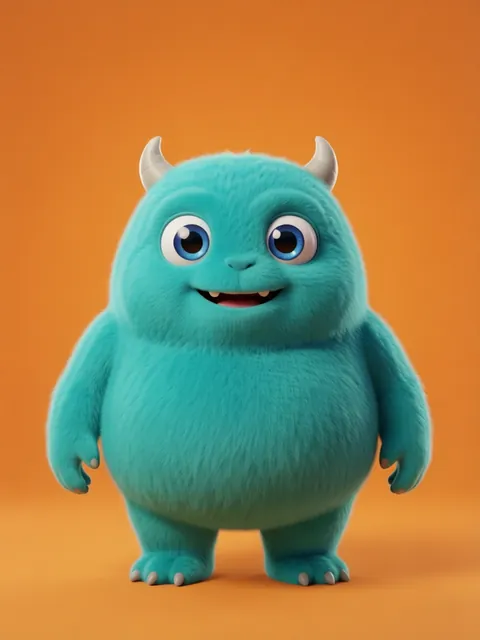
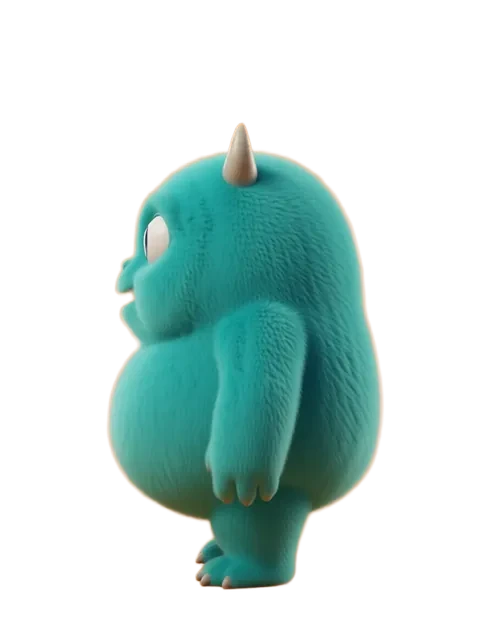
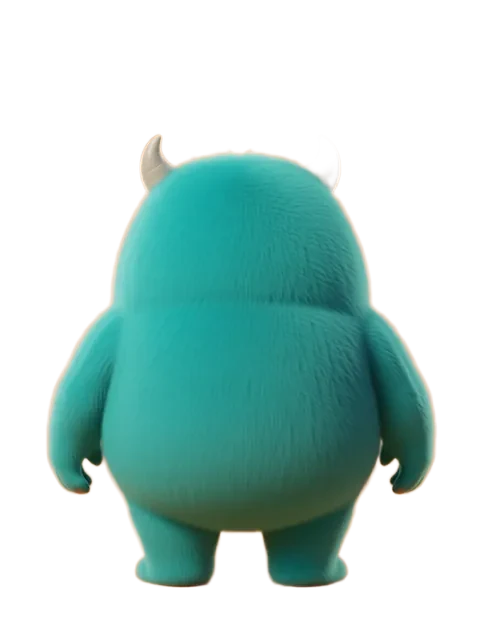
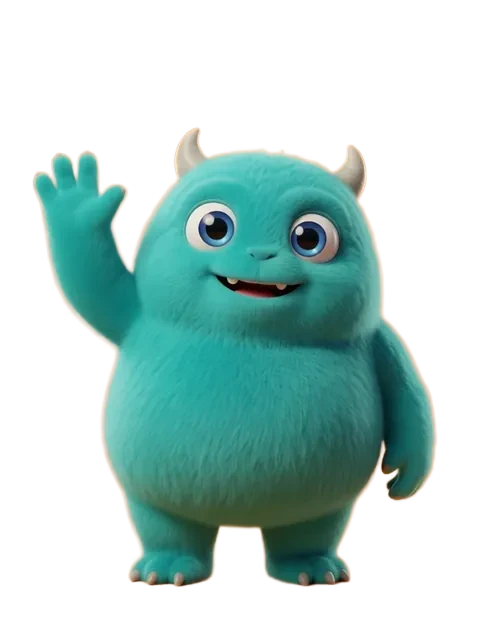
- 01
Generate your sprite sheet at target resolution
Generate the sheet at the exact resolution your Godot project needs. Godot renders sprites at native resolution by default — a 128x128 sprite covers 128x128 pixels on screen at 1x scale. Generate a clean grid-aligned sheet with consistent cell padding.
- 02
Import to Godot and create an AnimatedSprite2D node
Copy the PNG into your project folder. In your scene, add an AnimatedSprite2D node, create a new SpriteFrames resource in the Inspector, and name it. Godot auto-detects the sprite sheet but does not auto-slice — you will assign frames manually from the sheet.
- 03
Configure SpriteFrames with per-angle frames
Open the SpriteFrames panel at the bottom of the editor. Create 8 animations named by direction: "idle_front", "idle_front_right", "idle_right", "idle_back_right", "idle_back", "idle_back_left", "idle_left", "idle_front_left". For each, add a single frame by selecting the corresponding region from the sprite sheet texture.
- 04
Set up AnimationPlayer for angle transitions
Add an AnimationPlayer node as a sibling to the AnimatedSprite2D. Create transition animations that crossfade or tween between direction states if you want smooth rotation rather than hard cuts. For pixel art, skip this — hard cuts between angles are the correct aesthetic.
- 05
Wire directional input to sprite index changes
In your character script, capture the input vector, calculate its angle, and map it to one of 8 direction strings. Call `$AnimatedSprite2D.play("idle_" + direction)` each frame. Use a small deadzone on the input vector to prevent rapid direction flickering when the joystick is near center.
- Godot SpriteFrames panel is at the bottom of the editor by default — drag it up if you cannot see the frame grid
- Name your direction animations consistently: "idle_N" for cardinal directions, "idle_NE" for diagonals, or use full names — pick one convention and stick to it
- Set SpriteFrames FPS to 0 for single-frame direction animations — non-zero FPS will loop a single frame unnecessarily
- Input vector angle-to-direction mapping: divide 360 degrees into 8 sectors of 45 degrees each, centered on the cardinal and diagonal directions
- Add a deadzone of 0.15-0.2 on your input vector length — below this threshold, keep the last direction rather than snapping to a default
- Godot imported textures have Filter enabled by default — for pixel art, select the texture, go to the Import tab, and set Filter to false
- Use an AtlasTexture resource to reference individual sprites from the sheet instead of slicing — this keeps the source texture intact for future re-imports
- For 4-directional games, create only 4 SpriteFrames animations and use horizontal flip for left-facing sprites — saves sprite sheet space
Frequently asked questions
How do I slice a sprite sheet in Godot?
Why does my character flicker between directions in Godot?
Should I use AnimatedSprite2D or Sprite2D with a script?
How do I handle sprite flipping for left/right directions in Godot?
Ready to create consistent character views?
Upload a reference image and generate multi-angle views that stay true to your character.
Start generating