
Create Character Art for VTuber in Pixel Art Style
Pixel art VTubers sit at the intersection of retro aesthetic and modern rigging — you need clean sprites at constrained resolutions that still read as your character on a 1080p stream. AI can generate the pixel turnaround, but the cleanup and palette discipline make or break the final asset. Answer: Generate a standard reference sheet first at high resolution to lock identity, then re-generate at 64x64 and 128x128 with "pixel art, indexed color, dithering, sharp pixel edges" in the prompt. From there, clean the palette to 16-32 colors per sprite, align every frame to a consistent pixel grid (no sub-pixel offsets between angles), and export as a sprite sheet with equal cell dimensions. The hardest step is palette discipline — AI pixel art loves 200-color palettes that kill the retro look.
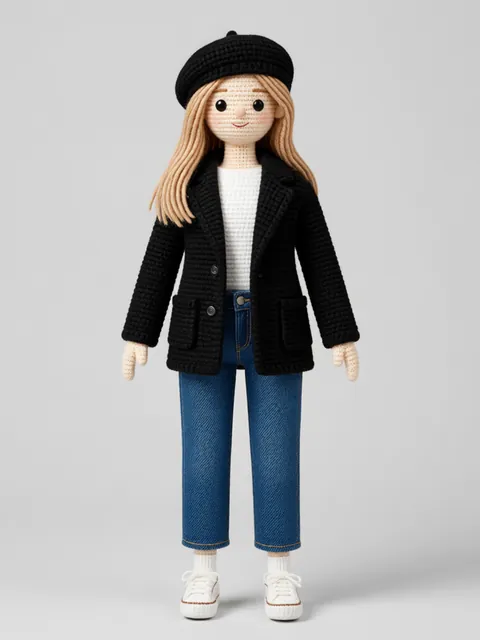
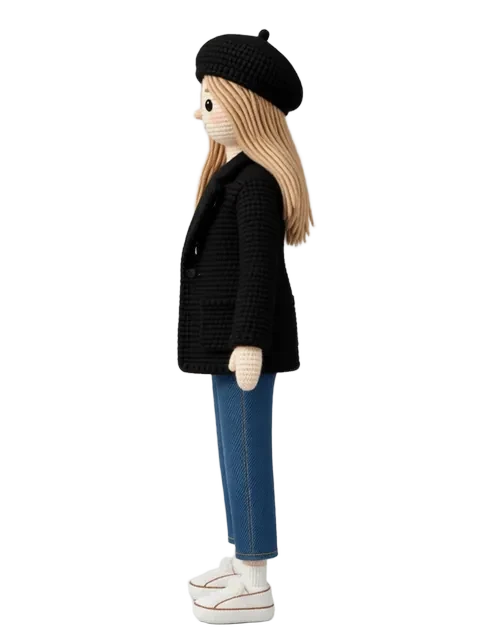
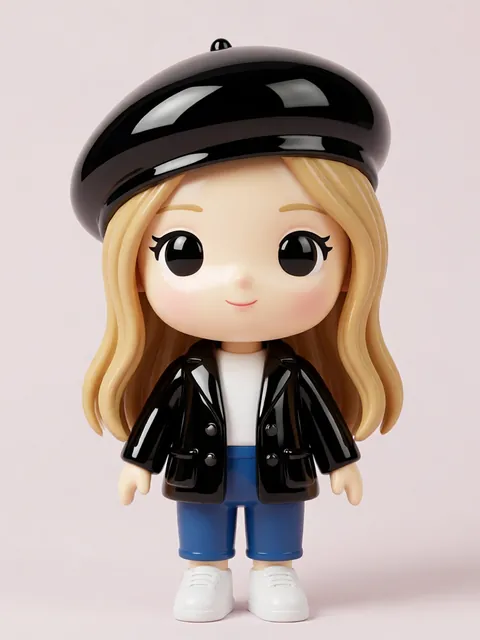
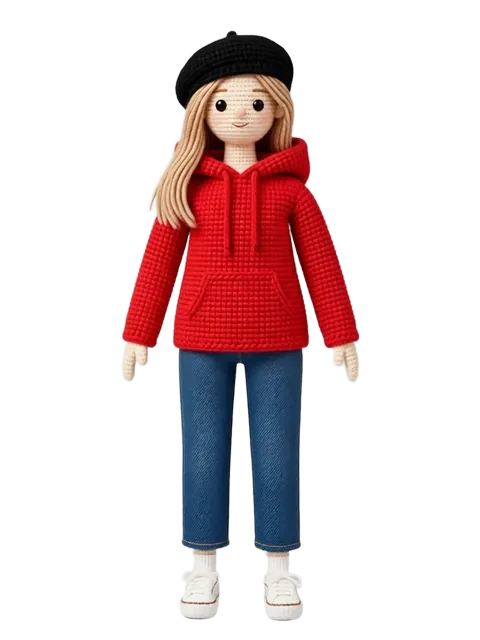
- 01
Generate a standard reference sheet first
Run the full 8-angle sheet at high resolution to establish identity, outfit details, and color relationships. This becomes your pixel art target — every detail must survive the downscale to 64x64.
- 02
Re-generate at 64x64 and 128x128 pixel art
Prompt with "pixel art, indexed color, dithering, sharp pixel edges, no anti-aliasing." Set reference strength to 0.6 at 128x128 (details survive) and 0.5 at 64x64 (silhouette matters more than detail). Generate both resolutions as separate sheets.
- 03
Clean the palette to 16-32 colors per sprite
AI pixel art outputs 50-200 colors because the model anti-aliases subconsciously. In Aseprite, switch to indexed color mode and reduce to 16 colors (64x64) or 32 colors (128x128). Hand-clean any orphan colors that survived the reduction.
- 04
Export sprite sheet grid-aligned
Every sprite cell must have identical pixel dimensions. Align all 8 angles so the character bounding box sits in the same cell position. A 1-pixel offset between angles creates visible jitter when switching sprites on stream.
- 05
Rig the pixel VTuber in Live2D or PNGTuber+
PNGTuber+ handles pixel art natively with directional sprite swapping. Live2D requires separate mesh regions per angle. For pixel art, PNGTuber+ is the better choice — Live2D meshing at 64x64 produces visible warping on curved surfaces.
- 16 colors is the sweet spot for 64x64 pixel art — fewer looks flat, more loses the retro identity
- Disable anti-aliasing in every prompt with "sharp pixel edges, no anti-aliasing" — AI models default to smooth edges even in pixel art mode
- Pixel art sprites jitter on stream if cell padding is uneven — add exactly 2px transparent padding around every sprite in the sheet
- Your VTuber silhouette must read at 64x64 from 6 feet away — test by shrinking the sprite to thumbnail size and checking if the character reads
- Hair shape, not facial features, carries VTuber identity at pixel scale — invest palette colors in hair gradient before eye detail
- Dithering looks authentic in still frames but flickers on video — disable dithering on the primary streaming sprites and keep a dithered variant for thumbnails
- If using Live2D, generate separate pixel sprites per mesh region (eyes, mouth, hair) rather than trying to warp a single 64x64 sprite
- Stream at 1080p with nearest-neighbor scaling — bilinear scaling blurs pixel edges and kills the pixel art aesthetic
Frequently asked questions
What resolution should my pixel art VTuber sprites be?
Why does my pixel art VTuber jitter when switching between angles?
Should I use Live2D or PNGTuber+ for a pixel art VTuber?
How do I stop AI pixel art from having too many colors?
Ready to create consistent character views?
Upload a reference image and generate multi-angle views that stay true to your character.
Start generating