
Import EZ Character Sprite Sheets into Unity
Unity 2D games need directional character sprites for top-down and side-scroller movement, but slicing a sprite sheet and wiring the Animation Controller by hand eats a full afternoon. EZ Character sprite sheets are grid-aligned by design, so the import pipeline is straightforward if you know the slice settings and the Animation Controller pattern. Answer: Generate your sprite sheet at the target game resolution (match your Pixels Per Unit setting), import the PNG into Unity with Sprite Mode set to Multiple, open the Sprite Editor and slice by Grid with your cell dimensions (e.g., 128x128 for an 8-angle sheet arranged as 2 rows of 4), apply the slices, then create an Animation Controller with a Blend Tree or direct sprite-swap states mapped to your input axis. Set pivot points to Bottom Center for ground-plane movement or Center for floating characters.
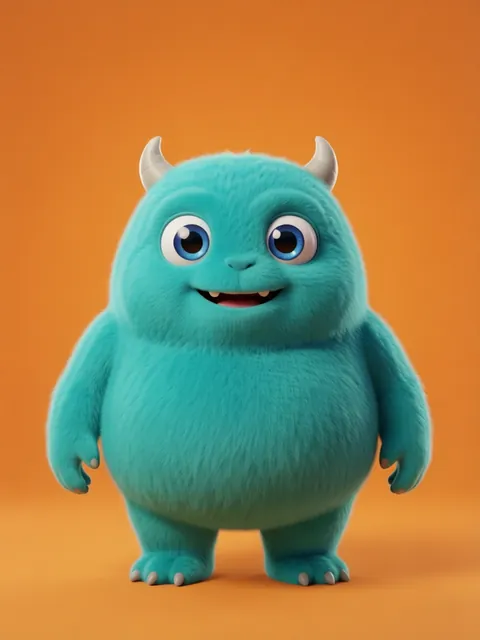
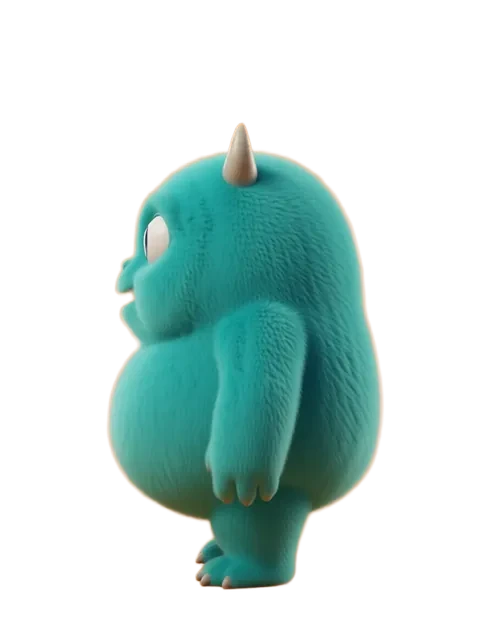
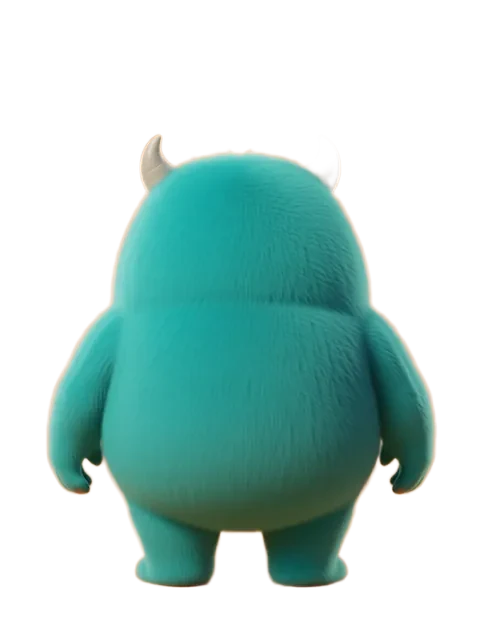

- 01
Generate your sprite sheet at target resolution
Set the EZ Character output resolution to match your Unity Pixels Per Unit setting. If your PPU is 128 and your character fills 1 unit, generate at 128x128 per sprite. Generate a grid-aligned sheet with consistent cell dimensions — grid alignment is critical for Unity Sprite Editor slicing.
- 02
Slice the sprite sheet in Unity Sprite Editor
Import the PNG, set Sprite Mode to Multiple in the Inspector, and open the Sprite Editor. Select Slice > Grid By Cell Size, enter your cell dimensions (e.g., 128x128), and apply. Unity automatically names each slice — verify all 8 angles were detected before applying.
- 03
Set pivot points per sprite
In the Sprite Editor, set the pivot to Bottom Center for characters that walk on a ground plane, or Center for UI and floating characters. Consistent pivot across all sprites prevents the character from shifting position when the sprite changes.
- 04
Create an Animation Controller with sprite swap clips
Create an Animation Controller with one animation clip per angle (Front, FrontRight, Right, BackRight, Back, BackLeft, Left, FrontLeft). Each clip is a single-frame sprite swap at the target sprite. For smooth 8-directional movement, use a 2D Blend Tree with Horizontal and Vertical input parameters.
- 05
Test at runtime with directional input
Wire your input system to the Blend Tree parameters. In Play mode, verify that moving the joystick in each of the 8 directions shows the correct sprite. Check for sprite popping at diagonal boundaries — if the transition is harsh, widen the Blend Tree threshold or add intermediate blend states.
- Grid slice by Cell Size only works if every sprite cell is identically sized — check cell dimensions before importing to Unity
- Set Pixels Per Unit consistently: if your sprites are 128px and you want the character to be 1 unit tall, PPU must be 128
- Bottom Center pivot prevents foot sliding during direction changes — Center pivot makes the character float 0.5 units above the ground plane
- A 2D Blend Tree with 8 animation clips is cleaner than 8 separate Animator states — fewer transitions to manage and smoother diagonal blending
- If using the new Input System, map your Vector2 movement directly to the Blend Tree Horizontal and Vertical parameters
- Sprite Atlas packing: add all angle sprites to a Sprite Atlas to reduce draw calls when multiple characters share the same material
- For pixel art sprites, set Filter Mode to Point (no filter) and Compression to None in the import settings or your sprites will blur
- Add a 1-pixel transparent border to each sprite cell before importing — Unity Sprite Editor sometimes clips edge pixels when slicing tight grids
Frequently asked questions
What cell dimensions should I use for Unity sprite sheet slicing?
Why does my character shift position when changing direction in Unity?
Should I use a Blend Tree or individual Animator states for 8-directional movement?
How do I prevent pixel art sprites from blurring in Unity?
Ready to create consistent character views?
Upload a reference image and generate multi-angle views that stay true to your character.
Start generating