
Import EZ Character Sprites into Aseprite
AI-generated character sprites are 90% there and 10% noisy — stray anti-alias pixels, palette bloat, and sub-pixel misalignment are the gap between "AI output" and "production sprite sheet." Aseprite is the tool that closes that gap, but the import workflow determines how much cleanup you will do. Answer: Generate your character turnaround at 4x your target pixel resolution (e.g., 256x256 if targeting 64x64), import the PNG into Aseprite, downscale to target dimensions using RotSprite or nearest-neighbor algorithm, switch to indexed color mode and reduce the palette to 16-32 colors, then hand-clean orphan pixels that survived the palette reduction — typically along edges and in transition zones where the AI anti-aliased. Snap every sprite to the pixel grid, verify frame boundaries are pixel-perfect, and export the cleaned sprite sheet with exact cell dimensions for your game engine.
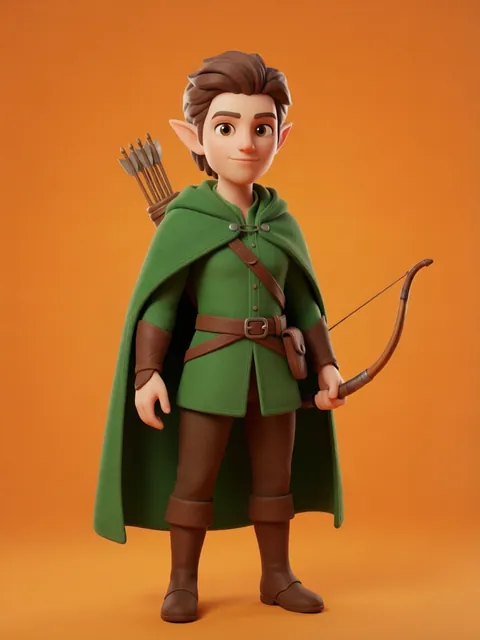
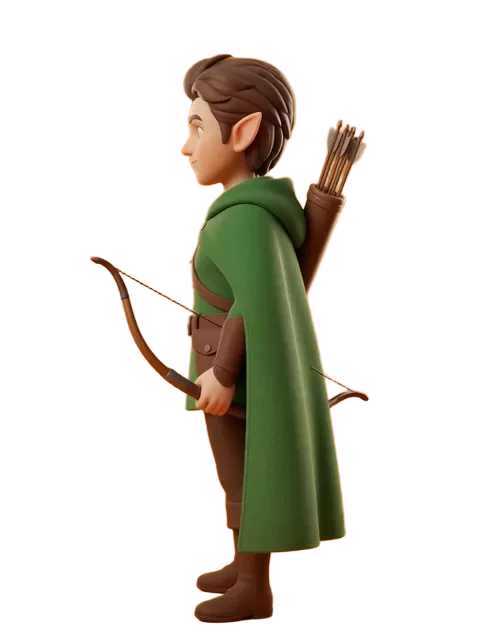
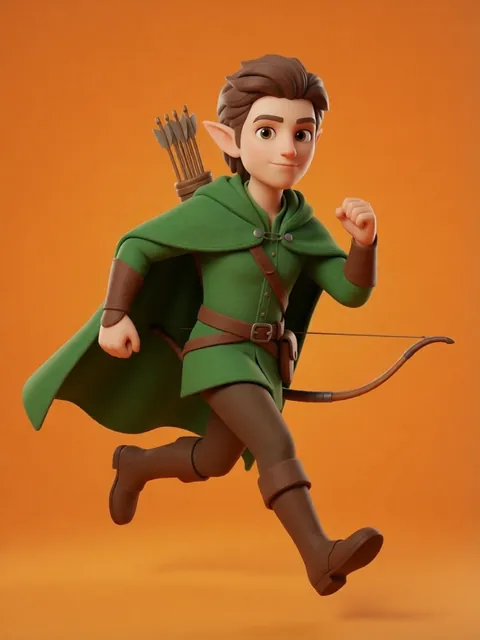
- 01
Generate a high-res character turnaround first
Generate at 4x your target pixel resolution (256x256 for a 64x64 final) with "pixel art, sharp edges, no anti-aliasing" in the prompt. The higher source resolution gives Aseprite more information to downscale cleanly — generating directly at 64x64 produces muddy sprites.
- 02
Downscale to target pixel dimensions in Aseprite
Open the high-res PNG in Aseprite. Use Sprite > Sprite Size to resize. Choose RotSprite algorithm for character art (preserves shape better than nearest-neighbor) or nearest-neighbor for hard-edge retro style. Set width and height to your target dimensions and apply.
- 03
Clean stray pixels and align to the pixel grid
Zoom to 800% and scan every sprite edge. AI anti-aliasing leaves semi-transparent orphan pixels at color boundaries. Use the Pencil tool (1px, hard) to clean edges. Enable View > Grid > Pixel Grid to verify that sprite boundaries fall on whole-pixel coordinates.
- 04
Reduce the palette with indexed color mode
Switch to Sprite > Color Mode > Indexed. Use Color > Quantize to reduce the color count to 16-32 colors. Aseprite will map similar colors to the same index. Review the reduced palette and manually merge any remaining near-duplicate colors that survived quantization.
- 05
Export the sprite sheet with correct frame dimensions
Verify every sprite cell has identical pixel dimensions. Use File > Export Sprite Sheet, set the layout to Grid, and specify the number of columns (e.g., 4 for an 8-angle sheet in 2 rows). Set the output file as PNG with transparent background. Test the exported sheet in your target engine before considering it done.
- RotSprite is the best downscale algorithm for character art — it rotates the image 8 times, scales each, and averages the result, preserving symmetry better than nearest-neighbor
- Semi-transparent pixels are the most common AI artifact — use the Color Picker in Aseprite to find pixels with alpha < 255 and paint them solid or erase them
- Indexed color mode is non-destructive — you can switch back to RGB at any time, but indexed mode enables palette quantization and per-color editing
- After palette reduction, use the Palette Editor to sort colors by luminance — this reveals near-duplicate colors that should be merged manually
- Aseprite grid snap: enable View > Grid Settings > Grid Snap when positioning sprites in the sheet to guarantee pixel-perfect cell alignment
- Export a test sprite sheet early in the cleanup process and load it into your game engine — engine rendering quirks (filtering, compression) can introduce new artifacts
- Create an Aseprite backup of the raw AI output before starting cleanup — you will want to re-downscale with different settings and comparing results is faster with the original
- For pixel art with outlines, clean the outline to exactly 1px width first — AI outputs often have 1-3px inconsistent outlines that read as sloppy pixel art
Frequently asked questions
What downscale algorithm should I use in Aseprite for character sprites?
How many colors should my pixel art sprite palette have?
Why do my sprites have semi-transparent edge pixels after importing to Aseprite?
How do I verify my sprite sheet is grid-aligned before exporting from Aseprite?
Ready to create consistent character views?
Upload a reference image and generate multi-angle views that stay true to your character.
Start generating