
EZ Character + Photoshop: Multi-Angle Reference to Professional Composite Pipeline
Generate locked character references in EZ Character. Composite in Photoshop with full layer control. The same character, every scene, every angle — professional compositing meets AI consistency.
Why this combination
Photoshop remains the professional standard for compositing, retouching, and final art production. EZ Character provides the locked multi-angle reference set. In Photoshop, composite the character into scenes, apply lighting passes, paint over details, and produce final art where the protagonist looks the same on every page. The AI reference + professional compositing workflow is the highest-quality character illustration pipeline available to solo creators.
Step-by-step workflow
- 1
Generate the multi-angle reference set
Upload your character to EZ Character. Generate the full 8-angle turntable + expression sheet at maximum resolution on a paid tier.
- 2
Export and open in Photoshop
Download the PNG reference set. Open your scene canvas in Photoshop. Place the EZ Character reference as a Smart Object.
- 3
Composite the character into the scene
Scale, position, and mask the character into your scene composition. Apply scene lighting via adjustment layers clipped to the character layer.
- 4
Paint over and refine
Use the reference as a base. Paint over details, add texture, adjust colours, apply your style. The reference ensures correct proportions; the paint-over adds your craft.
- 5
Repeat with the same reference across scenes
For multi-page or multi-composition projects, use the same EZ Character reference set. Each scene gets the correct angle from the locked set.
Pro tips
- Import references as Linked Smart Objects — one central file updates everywhere
- Use Photoshop's "Match Colour" to harmonise scene lighting across all compositions
- Generate the character against a neutral grey background for easiest masking in Photoshop
- Create a Photoshop template with the character pre-masked at each angle for your specific project
Frequently asked questions
Can I remove the background from EZ Character output in Photoshop?
What resolution should I use for print-quality Photoshop composites?
Does this workflow work for batch processing multiple scenes?
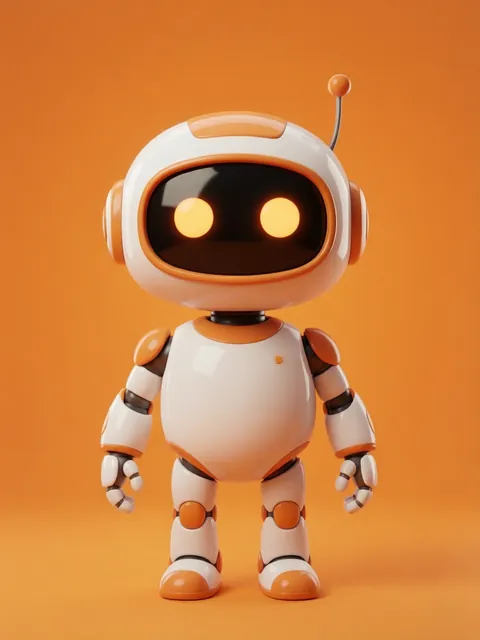


Start your Photoshop character pipeline
Generate the multi-angle character reference in EZ Character. Import into Photoshop. Ship faster.
Try EZ Character freeFree tier: 40 credits every month. No credit card required.