
Import Multi-Angle Character Sheets into After Effects
Motion designers use character turnarounds for title sequences, explainer videos, and social media assets where a character rotates smoothly on screen. The 8-angle sheet is essentially a stop-motion rotation sequence — import it right and you get a seamless 360-degree spin that loops perfectly. Answer: Generate your 8-angle turnaround with consistent framing (identical character size and position per angle), import the full sheet or individual angle PNGs into After Effects, arrange each angle as a separate layer in a composition, then use time-remapping or layer sequencing to create a rotation timeline. Apply Easy Ease to the angle transitions for a smooth deceleration-acceleration feel, add a looping expression if the rotation needs to cycle continuously, and export as a transparent WebM (web/social) or ProRes 4444 with alpha (broadcast/video production). The key to a convincing turnaround is consistent character registration — every angle must share the same anchor point.
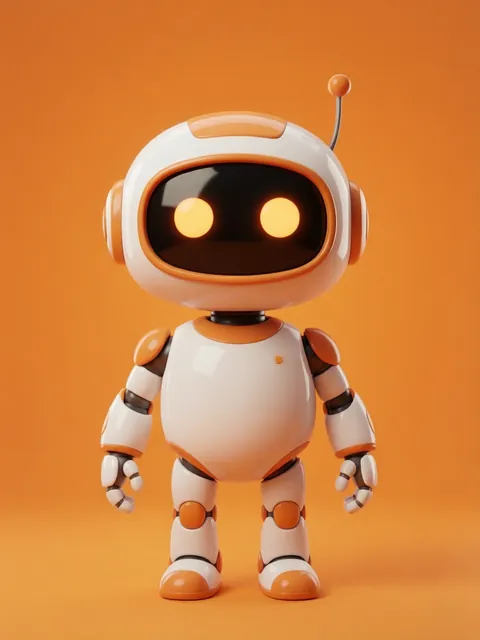
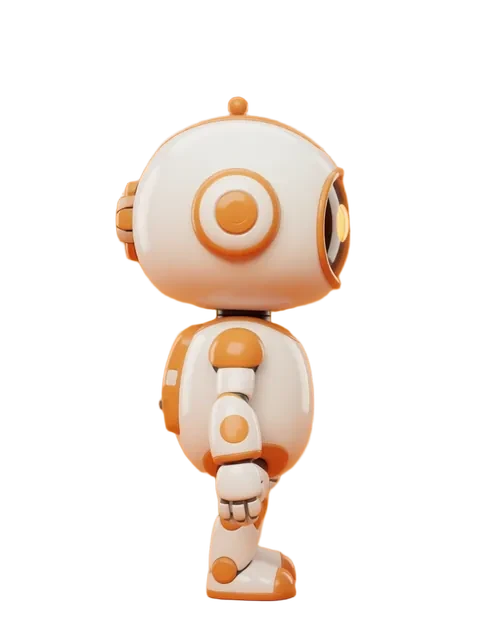
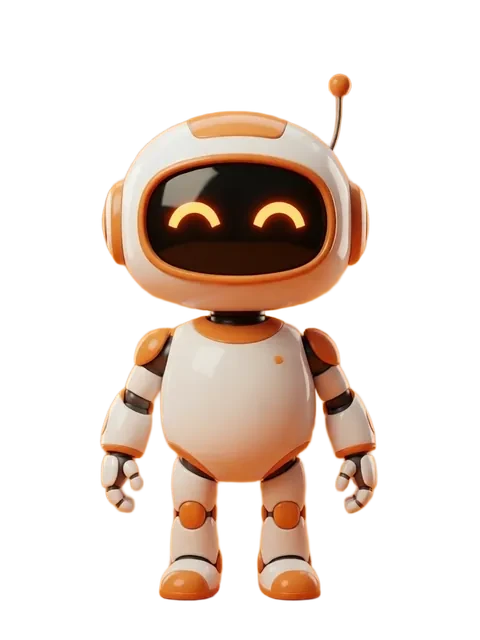
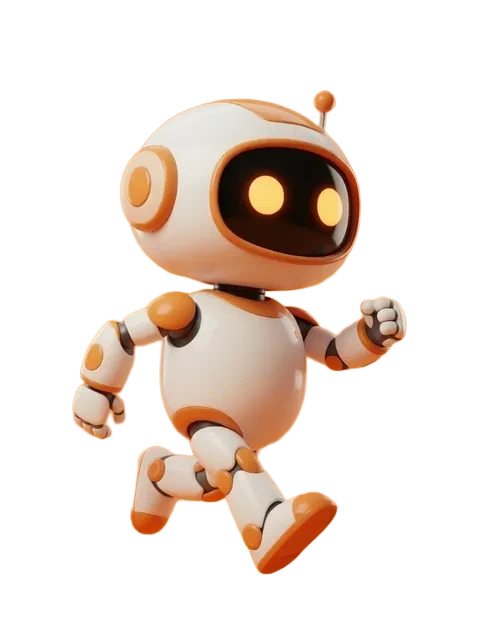
- 01
Generate your 8-angle turnaround with consistent framing
Every angle must have the character identically sized and centered. Request "consistent framing, identical canvas position across all angles" in the EZ Character prompt. If the character drifts 5px between angles, the After Effects rotation will stutter.
- 02
Import angles as AE composition layers
Import all 8 angle PNGs into After Effects. Create a new composition at your target resolution (1920x1080 for video, 1080x1080 for social). Place each angle on its own layer, center them all to the composition using the Align panel, and set each layer duration to 2-3 frames.
- 03
Sequence angles into a rotation timeline
Arrange layers sequentially in the timeline: Front, Front-Right, Right, Back-Right, Back, Back-Left, Left, Front-Left. Trim each layer to the same duration (2-3 frames per angle works for a snappy rotation). Enable Frame Blending set to Pixel Motion for smoother transitions.
- 04
Add easing for a smooth turnaround loop
Pre-compose the sequenced layers, enable Time Remapping, and add Easy Ease keyframes at the start and end of the rotation. For a looping rotation, add the expression `loopOut("cycle")` to Time Remapping. Adjust the keyframe velocity curve in the Graph Editor for the desired rotation feel.
- 05
Export as transparent WebM or ProRes for video projects
For web and social media, export as WebM with alpha channel (VP9 codec, alpha enabled). For broadcast or further compositing, export as ProRes 4444 with alpha or Animation codec. Verify the alpha channel by placing the export over a colored solid in a test composition.
- Registration is everything — if one angle is 5px off-center, the rotation will visibly stutter at that frame; check alignment with AE guides before sequencing
- 2 frames per angle gives a fast, snappy rotation; 3 frames per angle gives a smoother, more deliberate turn — test both before committing
- Pixel Motion frame blending adds in-between frames that smooth the rotation significantly — enable it on the pre-comp, not individual layers
- For a continuous spinning loop, duplicate your angle sequence so it plays front-to-back-to-front (16 frames total) and the loop expression will cycle seamlessly
- Puppet Pin tool can fix minor registration drift: if the right-view head is 3px higher than front-view, pin the feet and nudge the head down
- DUIK character rigging: if you need articulated rotation (head turns independently of body), split your character into head/body layers and animate rotation separately
- Add a subtle scale bounce (102% at each angle peak) with an expression to give the rotation physical weight — flat rotation looks mechanical
- Export a GIF preview at 15fps before rendering the full video — rotation stutter that is invisible in the AE viewport becomes obvious at lower frame rates
Frequently asked questions
How do I get a perfectly looping character rotation in After Effects?
Why does my character stutter at certain angles in the After Effects rotation?
Should I use Puppet Pin or DUIK for character rotation?
What is the best export format for a transparent character rotation?
Ready to create consistent character views?
Upload a reference image and generate multi-angle views that stay true to your character.
Start generating