
Import EZ Character Reference Sheets into Procreate
Procreate is the dominant illustration tool on iPad, and the Reference Companion feature is purpose-built for keeping a character reference visible while painting. An EZ Character multi-angle sheet loaded as a Reference Companion layer means you can paint with the reference floating beside your canvas at all times. Answer: Generate your multi-angle reference sheet at a resolution that matches your Procreate canvas (typically 300 DPI at your target pixel dimensions), AirDrop or iCloud the PNG to your iPad, open Procreate and create your illustration canvas, then use the Canvas menu > Reference Companion to load the sheet. Pin it to a corner of the screen and resize it so you can see at least 2-3 angles at once. For deeper reference integration, import the full sheet as a hidden layer group with one angle per layer, then toggle visibility per layer to check specific angles while painting. Color-pick directly from the reference to maintain palette discipline across your entire illustration.
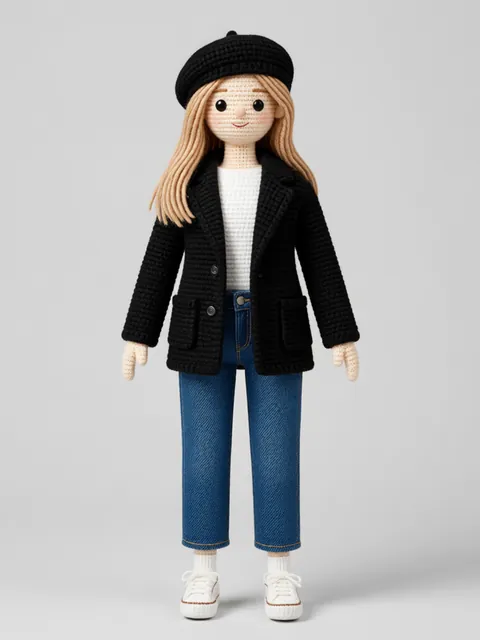
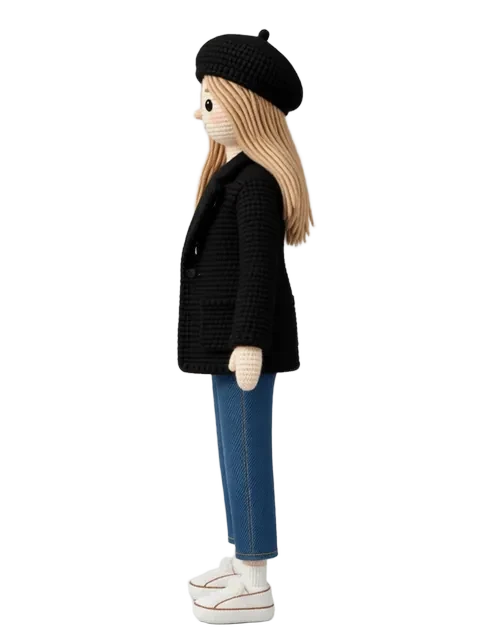
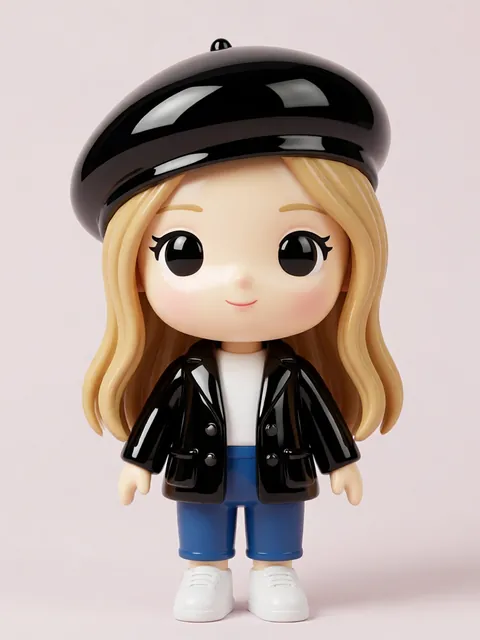
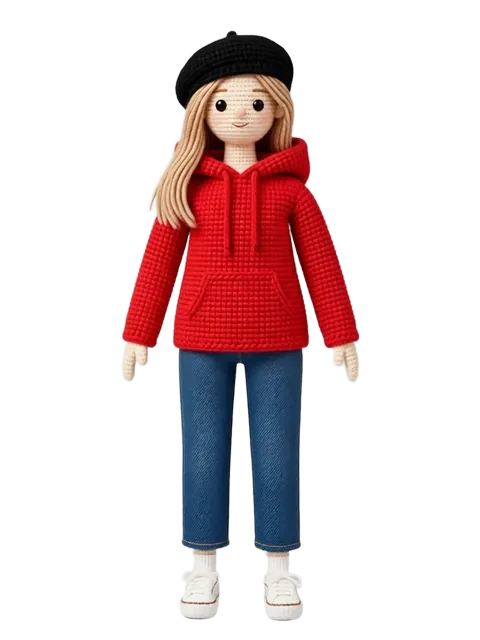
- 01
Generate your multi-angle reference sheet
Generate at 300 DPI and at least 2000px on the long edge — Procreate canvases are typically 3000-4000px, and you want the reference to hold detail when zoomed. Request clean separation between angles so each can be isolated later.
- 02
AirDrop or iCloud the reference to your iPad
AirDrop is the fastest transfer method and preserves full resolution. iCloud Drive works as a fallback — save the PNG to your iCloud folder and open it in Procreate from the Files app. Avoid email or messaging apps, which compress images.
- 03
Insert as a Procreate Reference Companion layer
In your illustration canvas, go to Canvas > Reference Companion > Import Image and select the sheet. The Reference Companion floats in a resizable window over your canvas. Position it in a corner where it does not block your drawing hand.
- 04
Set up per-angle layers for painting reference
For deeper reference integration, import the full sheet as a layer group: one angle per layer, group visibility toggleable. Place this group at the top of your layer stack with 40% opacity. Toggle angle visibility to check proportions without leaving the canvas.
- 05
Color-pick from the reference for palette consistency
Long-press on the Reference Companion or reference layer to activate the Eyedropper and sample colors directly. Build a Procreate palette from sampled colors (Palettes > New from Reference) so you have the full palette available without re-sampling.
- Reference Companion floats above all layers — you can paint under it without affecting the reference, unlike a reference layer which must be toggled
- Build a Procreate color palette from your reference sheet immediately after import — this saves dozens of re-sampling actions during a painting session
- Pin the Reference Companion to the top-left corner if you are right-handed, top-right if left-handed — it should sit opposite your drawing hand
- Split View with Procreate and the Photos app is an alternative to Reference Companion — swipe the reference sheet into Split View for a larger reference display
- If your reference sheet is too tall for the Reference Companion window, slice it into two horizontal strips (top 4 angles, bottom 4 angles) and switch between them
- Use a 2-finger tap on the reference layer to toggle between "show reference" and "show canvas" — faster than reaching for the layer visibility toggle
- Procreate layer limit varies by canvas size and iPad model — at 4000x4000px on a standard iPad, you get ~28 layers; use layer groups to stay organized
- Export your Procreate color palette as a .swatches file for reuse across illustrations — consistent palette across a series is what separates amateur from professional character art
Frequently asked questions
What resolution should my reference sheet be for Procreate?
Reference Companion vs reference layer — which should I use?
How do I transfer the reference sheet to Procreate without quality loss?
Can I use the same Procreate reference palette across multiple illustrations?
Ready to create consistent character views?
Upload a reference image and generate multi-angle views that stay true to your character.
Start generating