
Create Character Art for Webtoon in Watercolor Style
Webtoon artists need consistent character references across 60+ episodes, and watercolor style is notoriously hard to replicate panel-to-panel because wash edges bloom differently at every resolution. A multi-angle AI reference sheet solves both problems at once. Answer: Upload your final webtoon character design (flat color block-in is fine), generate an 8-angle watercolor reference sheet with reference strength 0.7, lock the dominant palette tokens in your prompt, then test at three common webtoon panel widths — 690px / 480px / 360px — before committing colors. Watercolor blooms shift hue 3-5% at smaller sizes, so export two palette variants (full-size thumbnail and panel-safe) and stick to the panel-safe palette for every episode.
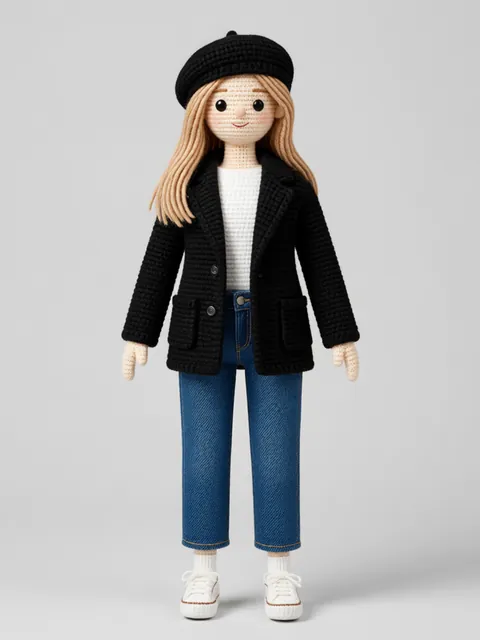
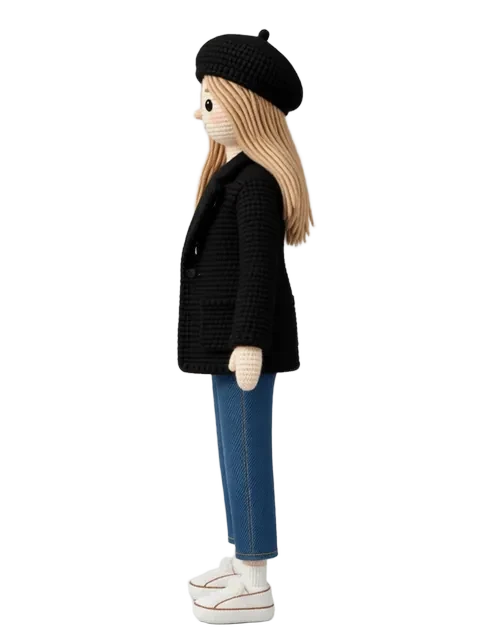
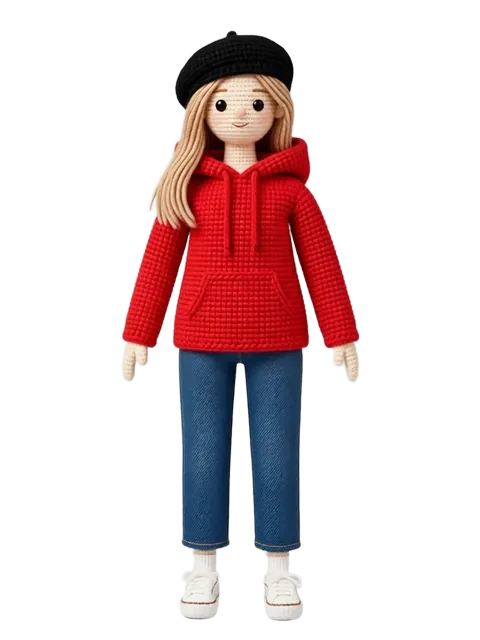
- 01
Prep your webtoon character design
Block in flat colors and mark key watercolor zones (bleed edges, granulation areas, reserved whites). Upload a clean front-three-quarter as your primary reference. Watercolor style reads best from a design that already separates shape from texture.
- 02
Upload and generate 8-angle watercolor reference
Run the full 8-angle sheet with "watercolor storybook style, granulating pigments, cold-press paper texture" in the style prompt. Set reference strength to 0.7 — lower loses the wash character, higher over-sharpens the blooms.
- 03
Lock the color palette for vertical scroll consistency
Sample the hex codes from your generated sheet and write them into every subsequent prompt as "palette: [list hex codes]". Watercolor AI models drift hue subtly between angles, and palette locking is the only reliable fix.
- 04
Test the style at webtoon panel sizes
Re-generate a single front view at 690px, 480px, and 360px wide. Compare watercolor bloom behavior — granulation that reads beautifully at full size can become muddy noise at panel size. Adjust prompt weight on "dry brush" vs "wet wash" per size tier.
- 05
Export Clip Studio Paint color-accurate files
Export each angle as a PNG with embedded sRGB profile. In CSP, set the reference sheet as a sub-view palette source and color-pick directly. Keep one layer per angle for fast toggle while inking panels.
- Watercolor granulation reads as noise below 360px — switch to "flat watercolor wash, minimal granulation" for thumbnail-tier panels
- Lock your palette hex codes in a text file and paste them into every prompt — one missed palette reload causes a visible episode-to-episode color jump
- Cold-press texture weight matters: 0.3 for mobile reading, 0.6 for desktop — too much paper texture at mobile size looks like compression artifacts
- Generate a "color-only" reference sheet (no line art) as a separate palette authority layer
- Reserved whites in watercolor are critical — describe them explicitly ("white of the paper left unpainted on cheek highlights") or the AI fills them with wash
- If your webtoon uses screentones, overlay them in CSP rather than asking the AI — watercolor + screentone prompts confuse most models into muddy gray washes
- Watercolor style works best with 2-3 accent colors max — more than that and blooms bleed into each other at any panel size
- Generate one extra "bleed-only" angle at 2x resolution for close-up panels where watercolor edge detail matters
Frequently asked questions
Why does the watercolor style look different at each panel size?
Can I use the same watercolor reference for both mobile and desktop webtoon readers?
How do I prevent watercolor colors from drifting between episodes?
What paper texture settings work best for webtoon watercolor style?
Ready to create consistent character views?
Upload a reference image and generate multi-angle views that stay true to your character.
Start generating