
How to Generate Character Art for Gumroad Product Thumbnails
Gumroad product pages compete in a visual marketplace where thumbnails are the only thing a browser sees before clicking. A consistent character mascot across your product line creates brand recognition that converts casual scrollers into buyers the way a book series with matching covers signals quality and cohesion. Digital product creators selling brush packs, templates, courses, or eBooks benefit especially: the character becomes a shorthand for your brand quality. Answer: Generate a character mascot at 1280x720px posed differently per product type so your entire Gumroad catalog looks cohesive while each product feels distinct. Use pointing poses for tutorials, presenting poses for asset packs, and thinking poses for courses, with product mockup space reserved on the right 40%.
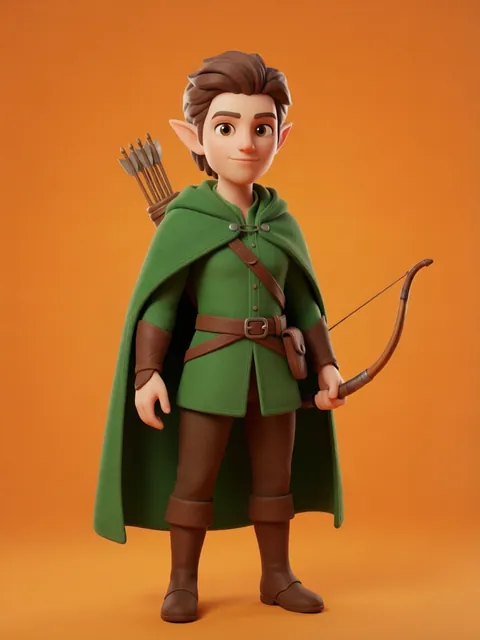
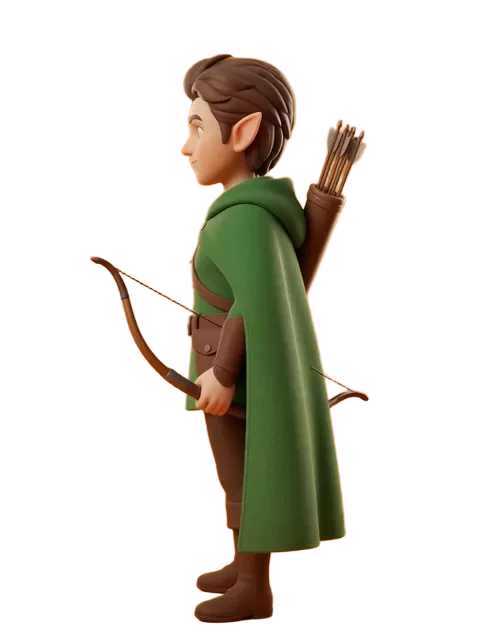
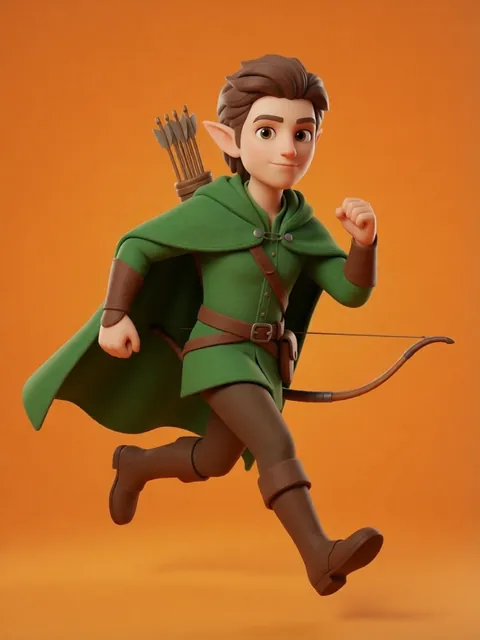

- 01
Generate Character Reference in Brand Style
Create your brand character in a clean cartoon or semi-realistic style that matches your product aesthetic. A brush pack creator might use a painter character; a coding course creator might use a robot mascot. Generate on a transparent background so you can swap themed backgrounds per product line. Export the reference sheet at 2400px wide for cropping flexibility.
- 02
Pose Character Per Product Type for Maximum Conversion
Point the character toward a CTA area for tutorial products, have them presenting or showcasing for asset packs and templates, and use a thinking or contemplative pose for courses and eBooks. The pose primes the viewer for the action they will take: learning, downloading, or purchasing. Pull each pose from your master reference sheet rather than regenerating.
- 03
Compose at 1280x720px with Product Mockup Space
Open a 1280x720px canvas at 72dpi. Position the character on the left 55-60% of the frame. Reserve the right 40% for a product mockup zone: a screenshot of your course interface, a preview of brush strokes, or a mockup of the eBook cover. Add a subtle drop shadow behind the character and a branded color gradient background that shifts hue but not saturation across your product line.
- 04
Add Product Title Text Zone on the Right 40%
Gumroad overlays product titles on the store page, but including a text-safe zone in your thumbnail ensures your design works on social media and email marketing too. Keep the right 40% visually calm (solid color or soft gradient) so any overlaid text remains readable. If adding your own title text, use a bold sans-serif at minimum 48pt for legibility at thumbnail grid size.
- 05
Export Thumbnail Series with Same Character Different Poses Per Product
Export each product thumbnail as JPEG at quality 90. Name files systematically: brandname-productname-thumbnail.jpg. When viewed as a grid on your Gumroad store page, the consistent character with varied poses creates a visual rhythm that encourages browsing across your full catalog. Update the full series when you refresh your brand style to keep the storefront looking current.
- Aim for a 16:9 aspect ratio at 1280x720px — Gumroad scales thumbnails but consistent ratios look professional in grid view
- Use a character expression that matches product energy: excited for launch deals, calm and confident for evergreen courses
- Add a subtle product category badge (brush icon, code bracket, book spine) near the character so buyers instantly identify product type
- Test thumbnails at 280px wide to simulate how they appear in Gumroad’s default store grid
- Keep the background gradient consistent across your product line but shift the hue 15-30 degrees per product category
- Avoid putting critical visual information in the bottom 5% of the frame where Gumroad’s price tag overlay sometimes sits
- Export a square 1080x1080px crop from the thumbnail composition for Instagram and Twitter product promotion posts
- Store all thumbnail source files with character poses as layered files so you can swap product mockups without recreating art
Frequently asked questions
What are the recommended Gumroad thumbnail dimensions?
How many different character poses do I need for my product line?
Does the character need to match my product niche exactly?
Can I generate Gumroad product thumbnails with the free tier?
Ready to create consistent character views?
Upload a reference image and generate multi-angle views that stay true to your character.
Start generating