
How to Generate a Character for Discord Stickers
Discord stickers have evolved from a Nitro perk into an essential community expression tool, and custom server stickers featuring a consistent character mascot can transform your server’s chat culture. Discord sticker specifications are specific and non-negotiable: each sticker must be a 320x320 pixel PNG or APNG file under 512KB, and sticker packs require a minimum of 5 stickers with a maximum of 30. Chibi-style characters with exaggerated expressions are the dominant aesthetic in Discord sticker culture because the compressed square format rewards bold, readable expressions over fine detail. Answer: Generate a chibi-style character reference from the multi-angle generator, then create a set of 8 to 15 expression variants covering the emotional range your community needs such as happy, sad, rage, laugh, blush, shocked, thumbs-up, and celebration. Export each at exactly 320x320 pixels as a PNG under 512KB, add a white stroke outline for dark mode visibility, and upload the pack through Discord Server Settings. A well-made sticker pack boosts engagement and gives your server a personality that members love to use daily.
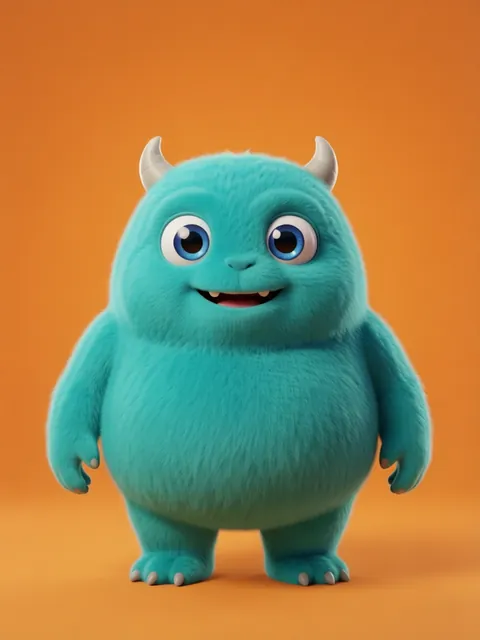
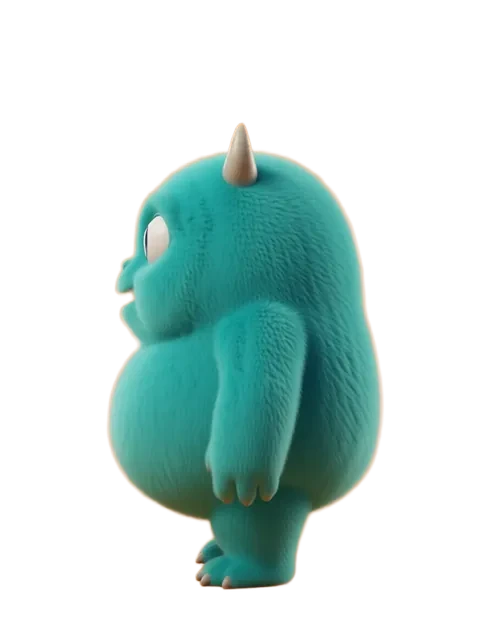
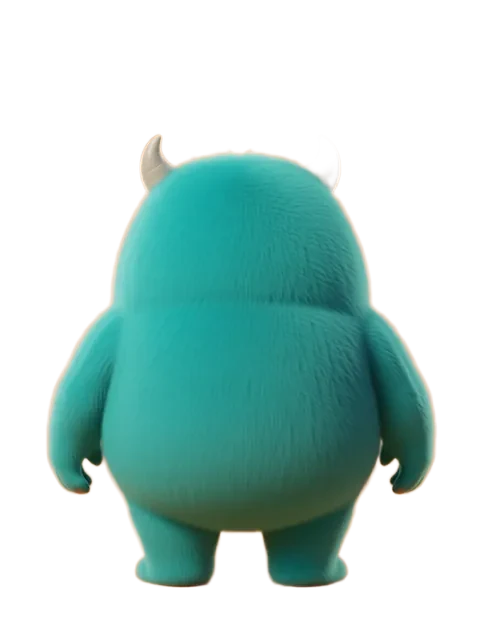
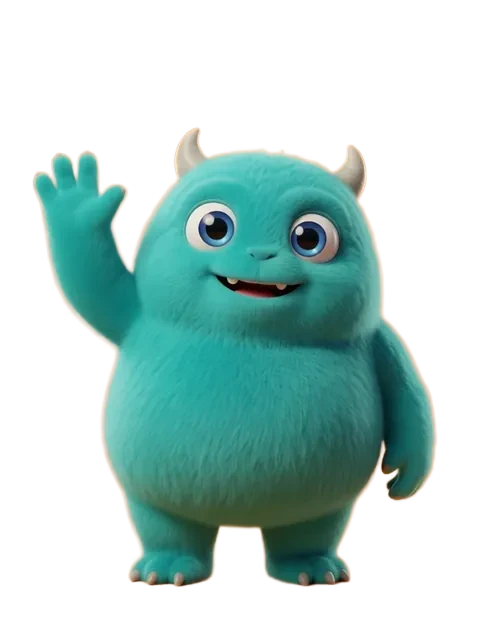
- 01
Generate a chibi-style character reference sheet
Use the multi-angle character generator with the chibi style preset. Chibi proportions emphasize a large head, small body, and oversized facial features (eyes take up roughly one-third of the face). Generate a front-facing reference with a neutral expression as your master design. The head-to-body ratio should be roughly 1:1 or 1:1.5 for a classic chibi look. Download this reference as your sticker character foundation.
- 02
Create 8 to 15 expression variants from the front view
Using your chibi reference as the base, generate expression variants one at a time with specific emotion prompts. Recommended core set: happy (wide smile), sad (teardrop, downturned mouth), rage (anger mark symbol, red face), laugh (eyes closed, open mouth), blush (pink cheeks, shy smile), shocked (wide eyes, small mouth), thumbs-up (hand raised, confident grin), and celebration (arms up, confetti optional). Add server-specific expressions like "pog" for gaming communities or "cozy" for hangout servers.
- 03
Export each sticker at 320x320px PNG under 512KB
Open each expression variant in an image editor and resize or crop the canvas to exactly 320x320 pixels. Position the chibi character centrally, filling approximately 80-85% of the canvas for maximum visibility in chat. Check that the file size is under 512KB after export. If a file exceeds the limit, use PNG compression tools like TinyPNG or reduce the color depth to indexed color at 128 colors. Discord rejects stickers that exceed the file size cap without warning during upload.
- 04
Add a white stroke outline for dark mode visibility
In your image editor, add a 2-3px white stroke (outer glow or layer stroke effect) around your chibi character on each sticker. This outline is critical because Discord’s default dark theme can swallow characters with dark hair or dark clothing, making them invisible against the chat background. For characters with very light or white color schemes, use a subtle dark outline instead. The stroke should be clean and even, not feathered or blurry, to look intentional and polished.
- 05
Upload the sticker pack through Discord Server Settings
Open your Discord server, go to Server Settings > Stickers, and click Upload Sticker. You need the Manage Expressions permission. Upload each 320x320px PNG one by one, assigning a relevant emoji as the sticker’s related emoji (this helps with sticker suggestions in chat). After uploading at least 5 stickers, group them into a named sticker pack. Once the pack is live, test each sticker in a chat channel to confirm they display correctly at small inline sizes and at full expanded size.
- Test every sticker in Discord at both inline size (about 48x48px in chat) and the full expanded pop-out size to make sure expressions read clearly at both extremes.
- Discord supports APNG for animated stickers, which can elevate a sticker pack significantly. Use the generator to create a 2-frame variant such as a bouncing or blinking version and export as APNG under 512KB.
- Name your stickers with descriptive keywords that appear in Discord’s sticker suggestion panel. For example, name the rage sticker "character_rage" rather than "sticker_3" so users can find it by typing.
- If your server is at the free Boosting level, you are limited to 5 custom sticker slots. Prioritize the most versatile expressions: happy, laugh, sad, thumbs-up, and celebration as the essential set.
- For Nitro-boosted servers with more sticker slots, create themed mini-packs such as holiday variants and reaction variants that members can collect and look forward to as seasonal content drops.
- Avoid transparency gradients and soft feathered edges in sticker exports because Discord’s rendering engine sometimes produces a white fringe halo around semi-transparent pixels against dark mode.
- Keep the original high-resolution working files for each sticker in case you need to resize, recolor, or regenerate variants later. A single 320x320 export cannot be enlarged without quality loss.
- If you generate stickers for multiple servers, maintain a consistent character naming scheme and file organization structure so you do not accidentally mix up expression variants between different character mascot sets.
Frequently asked questions
What are the exact file format, dimensions, and size limits for Discord stickers?
Can I create Discord stickers on the free tier of the generator?
Why do my stickers look blurry or low-quality in Discord even though the source file is sharp?
Can I use the same character design for both Discord stickers and Twitch emotes?
Ready to create consistent character views?
Upload a reference image and generate multi-angle views that stay true to your character.
Start generating