
Use 3D Camera for Product Mockup Angles
Putting a character on a product is not just about the design — the camera angle determines whether the mockup looks realistic. A t-shirt mockup needs a clean front-facing chest-level view. A phone case wrap needs the back-3/4 angle. A cylindrical product like a mug needs multiple views stitched around the curve. The 3D camera angle tool lets you generate the exact character view each product type demands. Answer: Use the 3D camera angle tool to generate character views at the specific angles required by each product type — front eye-level for apparel, 3/4 back for phone cases, multi-angle sequences for cylindrical products — so your mockups look professional and production-ready.
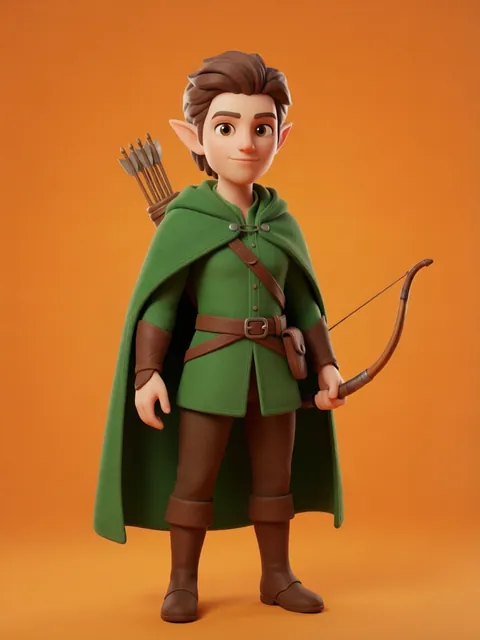
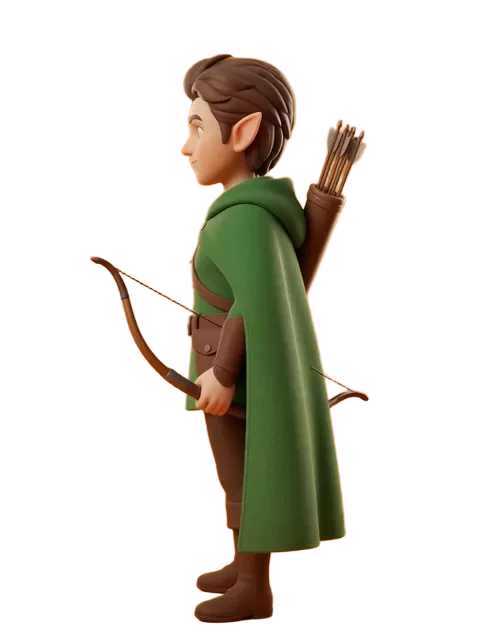
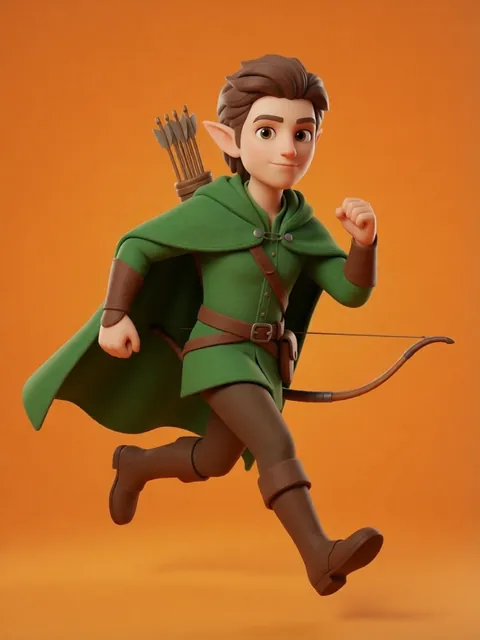
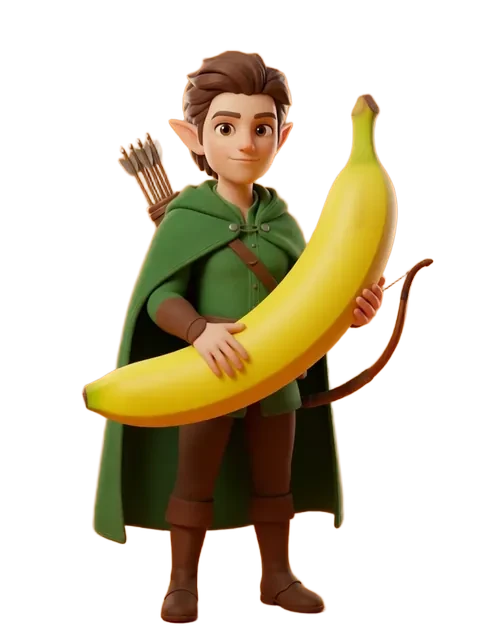
- 01
Set Front Eye-Level for Apparel and Sticker Mockups
For t-shirts, hoodies, tote bags, and sticker sheets, set the camera to azimuth 0 (straight front) and elevation 0 (eye level). This flat, centered view places the character design exactly where it prints on the product — no perspective distortion to complicate the mockup.
- 02
Rotate to 3/4 Back for Phone Case Mockups
Phone cases typically show the back of the device with a slight angle. Set azimuth to approximately 135 degrees (back-3/4 view) and raise elevation slightly to +10 degrees. This angle shows the character design wrapping naturally around the back of the case in a way that front or profile views cannot.
- 03
Generate a 4-Angle Sequence for Cylindrical Products
Mugs, bottles, and water bottles wrap around a cylinder — you need character views from multiple sides. Generate four angles at azimuth 0 (front), 90 (right), 180 (back), and 270 (left) — all at eye level with identical distance. The four views can be stitched into a wrap-around design template.
- 04
Pull Back and Flatten for Distortion-Free Product Shots
Move the camera further back and use a longer focal length equivalent to minimize perspective distortion. This "flat lay" approach makes the character design read clearly on the product without the fisheye stretching that comes from being too close.
- 05
Save and Export Per-Product Camera Presets
After you have dialed in the perfect camera position for a product type, save it as a named preset: "T-Shirt Front," "Phone Case Back," "Mug Wrap Front." These presets let you drop any character into the same product mockup angle instantly, keeping your store visuals consistent.
- For t-shirt mockups, frame the character from the upper chest to just below the waist — this is the printable area on most apparel.
- Phone case mockups need the character design to wrap around the edges — generate an additional profile view (azimuth 90 or 270) for the side wrap.
- For mugs, the handle side should use a slightly different framing — generate an extra angle at azimuth 0 but with the character shifted slightly off-center to leave room for the handle.
- Sticker sheets benefit from a slight high angle (elevation +10 to +15) rather than dead-on front — it simulates the natural angle someone looks at a sticker.
- Tote bag mockups should use a wider distance setting so the character design sits naturally in the center of the bag with visible fabric margin around it.
- Pillow and blanket mockups look best with a very slight perspective — add a minor 5-degree azimuth offset to simulate the product sitting naturally rather than perfectly flat.
- Keep a spreadsheet of your product preset camera coordinates so you can reference or share them with collaborators.
- The free tier includes 40 credits every month with no daily cap. A full 4-angle cylindrical product sequence takes 4 generations — PRO adds 900 credits a month if you are producing mockups regularly.
Frequently asked questions
What camera angle is best for t-shirt character mockups?
How do I create a mug mockup with a character wrapped around it?
Should I use different camera settings for different product types?
Can I use the 3D camera tool for product mockups on the free tier?
Ready to create consistent character views?
Upload a reference image and generate multi-angle views that stay true to your character.
Start generating