
How to Use the 3D Camera Angle Tool
The 3D camera angle tool gives you full control over how your character is framed. Instead of picking from a fixed list of preset angles, you orbit a virtual camera around your character and dial in the exact shot you want. Think of it as a camera on a sphere — you control the azimuth (horizontal rotation around the character), elevation (up/down tilt), and distance (zoom). Answer: The 3D camera angle tool lets you rotate a camera around your character in real time so you can generate images from any viewpoint — not just the preset angles.
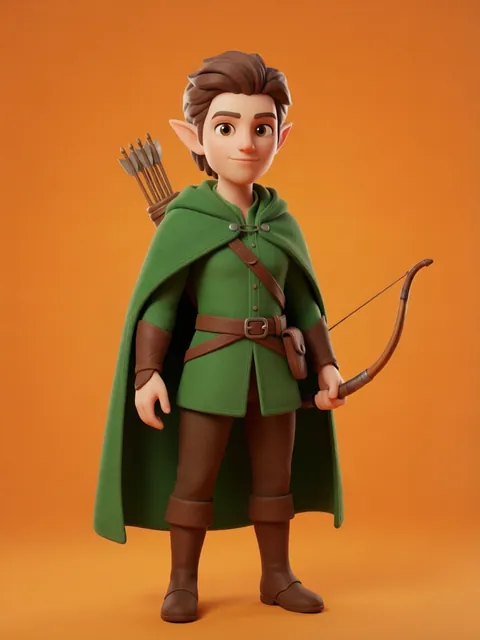
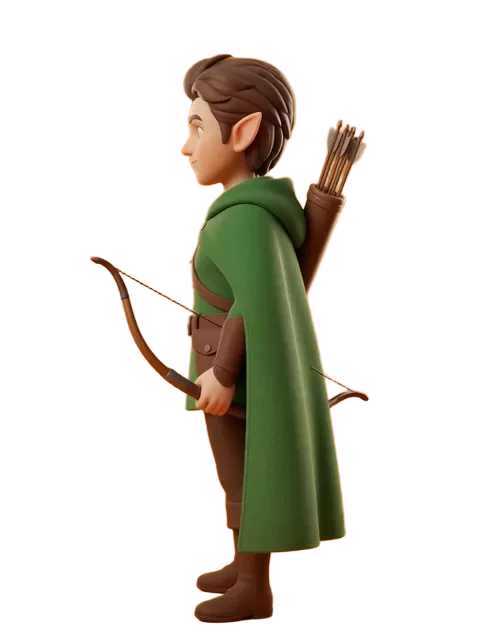
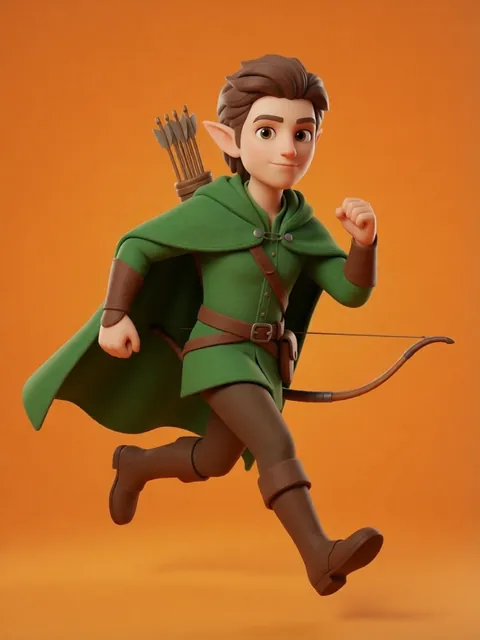
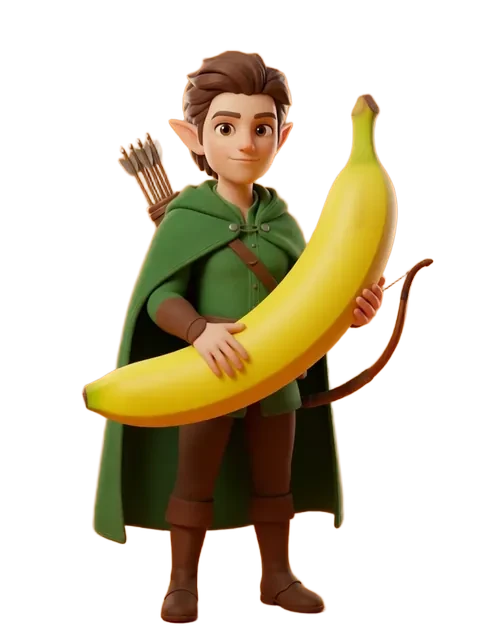
- 01
Upload Your Character Image
Drag and drop your character image onto the generator canvas. The tool works best with a clear, front-facing character reference, but any angle works as a starting point.
- 02
Open the 3D Camera Angle Tool
Select the 3D camera angle option from the tool selector dropdown. The camera viewport will open showing your character with default front-facing camera position.
- 03
Set the Azimuth for Your Starting Angle
Rotate the azimuth slider to position the camera horizontally around your character. Azimuth 0 is straight-on front view, 90 is the right profile, 180 is from behind, and 270 is the left profile. Choose the angle that matches your goal.
- 04
Fine-Tune with Elevation
Adjust the elevation slider to tilt the camera up or down. Keep it at 0 for eye-level shots. Raise elevation for a high-angle look (camera above the character). Lower it for a low-angle hero shot (camera below, character towers over the viewer).
- 05
Generate and Export
Once the camera is positioned exactly where you want it, hit generate. The tool renders your character from that precise camera position. Export the result or save the camera preset for future use.
- Start with azimuth before elevation — it is easier to find the right horizontal angle first, then adjust vertical tilt.
- Use the live preview thumbnail to check framing before generating the full-resolution image.
- Save frequently used camera positions as presets so you do not have to re-dial them every session.
- For character turnaround sheets, lock elevation at 0 and rotate azimuth in 45-degree increments.
- The distance slider controls how much of the character fills the frame — pull back for full-body shots, push in for headshots.
- If the character looks distorted at extreme angles, ease back a few degrees — extreme camera positions can stretch proportions.
- Label your exported images with the camera coordinates so you can reproduce the exact angle later.
- The free tier includes 40 credits every month and there is no daily cap — every camera-angle generation simply draws from your credit balance. PRO and MAX add larger monthly credit allowances for heavier camera work.
Frequently asked questions
What is the difference between the 3D camera angle tool and preset angles?
What do azimuth, elevation, and distance control?
Can I save my camera positions for later use?
Does the 3D camera angle tool work on the free tier?
Ready to create consistent character views?
Upload a reference image and generate multi-angle views that stay true to your character.
Start generating