
Import AI Character References into Photoshop
Adobe Photoshop remains the go-to tool for concept artists, illustrators, and game studios building character bibles. Its smart object system, layer comps, and color management make it uniquely suited for multi-angle character reference management — you can update the source once and every angle variant updates automatically. The EZ Character 8-angle sheet becomes a living reference document that scales from rough iteration to final print-ready export. Answer: Import the EZ Character reference sheet as a linked smart object, place each angle as a separate smart object instance on labeled artboards, build a color palette by sampling swatches from the reference, use layer comps to toggle between angle views for client review, and export angle variants at web resolution and print-ready 300dpi with one action.
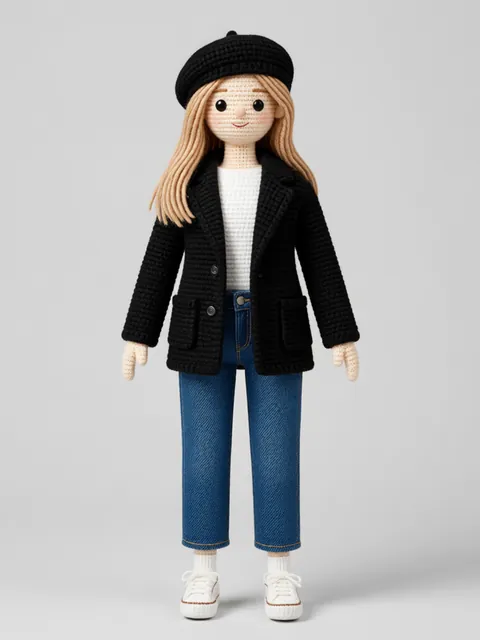
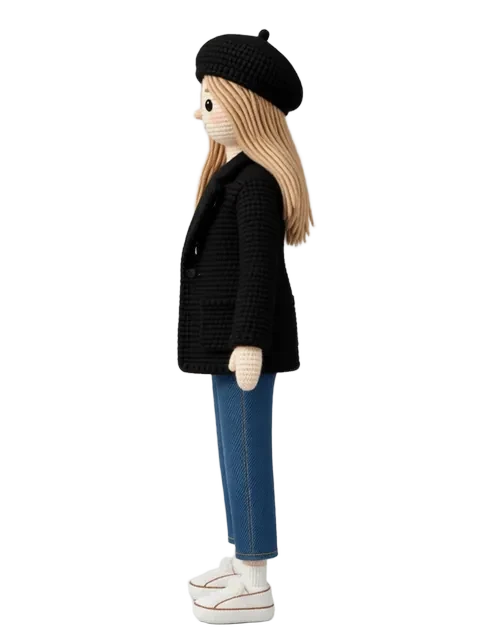
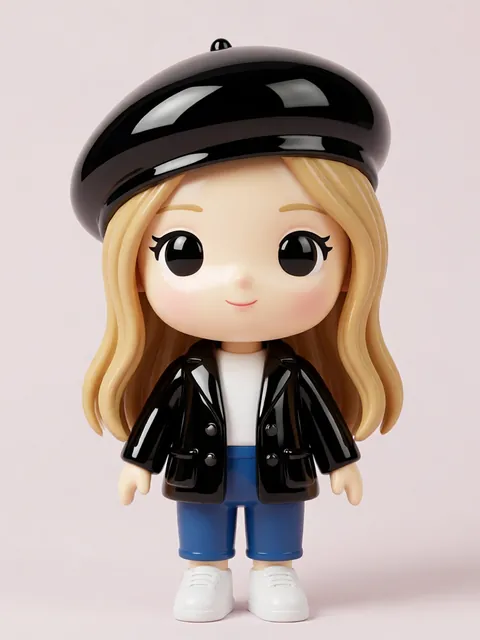
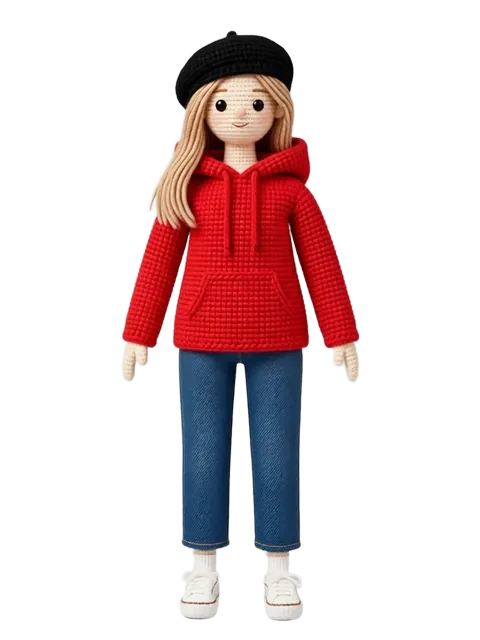
- 01
Import the reference sheet as a linked smart object
Go to File > Place Linked and select your EZ Character reference sheet PNG. Photoshop embeds it as a smart object that references the original file — edit the external PNG and every Photoshop document using it updates automatically. Name the smart object layer "Character_Ref_Master" and position it as your hero reference on a large canvas (3840x2160px at 300dpi for a character bible spread).
- 02
Create per-angle artboards with smart object instances
Use the Artboard tool (V, then right-click canvas > Artboard from Group) to create labeled artboards for each angle: Front, 3/4 Front Left, 3/4 Front Right, Profile Left, Profile Right, 3/4 Back Left, 3/4 Back Right, Back. Duplicate the smart object (Ctrl+J) onto each artboard and use Free Transform (Ctrl+T) to position each angle. Since all instances link to one source, updating the smart object updates every angle across all artboards.
- 03
Build a color palette by sampling swatches from the reference
Use the Eyedropper tool (I) to sample 5-8 key colors from the character: skin base, skin shadow, hair base, hair highlight, clothing primary, clothing accent, eye color, and lip/cheek tone. Open the Swatches panel (Window > Swatches) and click the New Swatch icon for each. Group swatches into a folder named after the character. Export as an .ASE file (Swatches panel menu > Save Swatches for Exchange) to share with the entire art team.
- 04
Set up layer comps for angle variant review
Open Window > Layer Comps. For each angle, create a new layer comp that records the visibility and position of that angle's artboard. Name comps "01_Front", "02_3Q4_Front_Left", etc. Layer comps let you toggle between angles with one click — useful for client presentations, art director reviews, or model sheet exports. Check "Appearance (Layer Style)" for each comp to capture any per-angle adjustment layers.
- 05
Export angle variants at multiple resolutions
Use File > Export > Layer Comps to Files to batch-export every angle as a separate PNG or PSD. Set one destination for web (72dpi, sRGB) and one for print (300dpi, CMYK). For game studios, also export individual smart object instances via File > Generate > Image Assets — append "-front", "-profile", etc. suffixes and Photoshop auto-exports each layer as its own file on every save.
- Linked smart objects (Place Linked) update across all documents when you modify the source PNG — use this when iterating on character design so every reference document stays in sync
- Embedded smart objects (Place Embedded) are self-contained and better for handing off files to external clients who won't have access to your source PNG
- Layer comps can capture position, visibility, AND appearance (adjustment layers) — check all three boxes when creating comps so color grading changes per angle are preserved
- The .ASE (Adobe Swatch Exchange) format works across Photoshop, Illustrator, and Fresco — your character color palette transfers to the entire Creative Cloud ecosystem
- Use Perspective Warp (Edit > Perspective Warp) on a smart object copy to adjust a front-angle reference to a slight 3/4 view without re-generating — useful for in-between angles
- Name your artboards with a consistent convention: "Angle_Front", "Angle_3Q4_FL" — this matters when using Generate Image Assets which creates filenames from layer names
- For game character bibles, also create a "Detail Callouts" artboard with zoomed-in smart object crops of face, hands, accessories, and footwear — art directors need close-up references
- Save an alternate version with a 50% gray background layer behind the character — transparency-only exports can look jarring in some review tools; a midtone background gives truer color perception
Frequently asked questions
Does this workflow require the full Creative Cloud Photoshop or will Photoshop Elements work?
What resolution should I generate the EZ Character reference at for a print character bible?
Can I use the free tier for generating Photoshop character references?
How do I handle color accuracy between the generated reference and print output?
Ready to create consistent character views?
Upload a reference image and generate multi-angle views that stay true to your character.
Start generating