
Convert a Character Sheet to 3D Modeling Reference Plates
You have a beautiful 2D character design, but translating it into a 3D model without proper orthographic reference plates is a recipe for proportion drift, mismatched anatomy, and hours of rework. Blender and Maya artists need front, side, and back views aligned on the same horizon line with matching feature landmarks to model accurately. Answer: Generate an 8-angle character reference sheet first, extract the three canonical orthographic views, align them to a shared scale and horizon, and annotate key anatomical landmarks across all plates. This produces the equivalent of a professional turnaround sheet purpose-built for 3D modeling software. Follow this pipeline and your 3D block-out will snap together from the first extrusion.
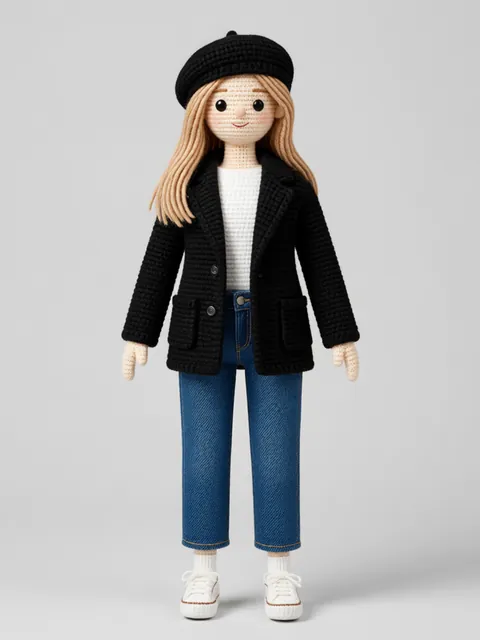
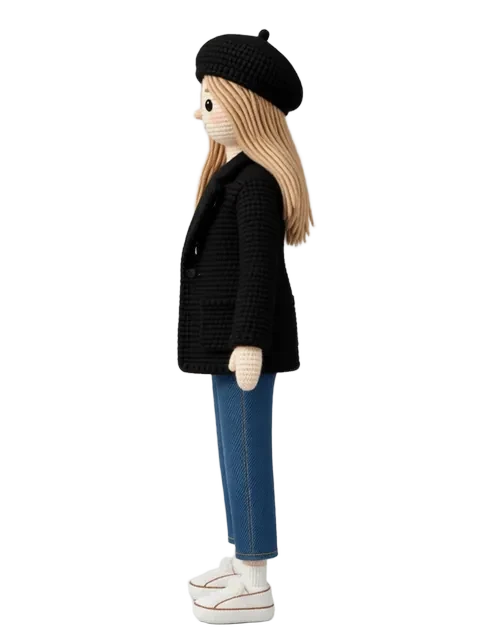
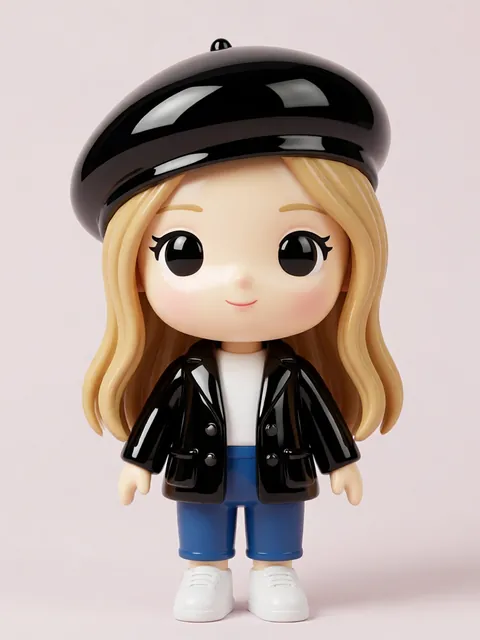
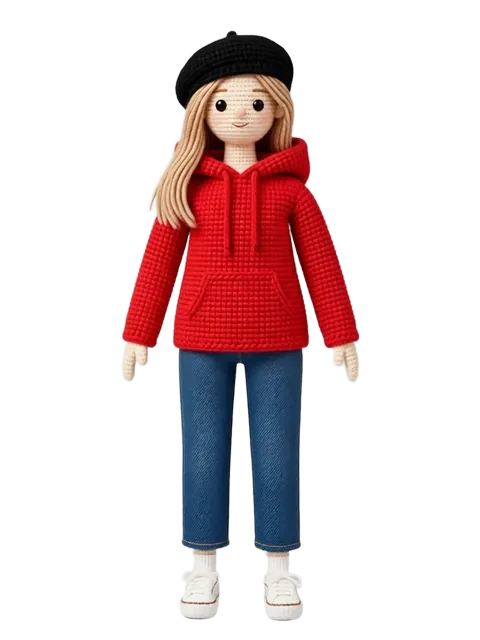
- 01
Generate the 8-angle character reference sheet
Create a multi-angle character reference with consistent identity, lighting, and proportions across all views. The front, three-quarter, profile, and rear angles serve as source material — capturing the character from every direction ensures you have clean orthographic information before extraction.
- 02
Extract the front, side (profile), and rear views
Isolate the 0-degree (front), 90-degree (profile), and 180-degree (rear) angles from the reference sheet. These three views form the orthographic triad that 3D modeling software expects. Crop each view tightly to the character bounding box, maintaining consistent padding on all sides.
- 03
Align all three views to matching height and horizon line
Scale each plate so the character stands at identical pixel height across all three views. Position the feet on a shared ground line and align the eye line horizontally. In Blender, set each image as a background reference on its respective orthographic axis and verify that the ground plane aligns across front, side, and rear cameras.
- 04
Annotate key anatomical landmarks across all views
Mark the eye line, shoulder line, elbow line, wrist line, hip line, knee line, and ankle line on each plate. Use horizontal guide lines that span across all three views so a 3D artist can see at a glance where each landmark sits from every angle. This annotation step prevents the most common modeling error — features at different heights on different views.
- 05
Export as Blender or Maya background image reference plates
Save each plate as a high-resolution PNG with the landmark annotations baked in or on a separate layer. For Blender, load them as "Image > Background" on the front, right, and back orthographic viewports. For Maya, use "View > Image Plane > Import Image" and set the placement to match the corresponding axis. Include a fourth plate — a perspective reference — as an optional guide for blocking out organic forms.
- Always match the character height pixel-for-pixel across all plates — a 2px height discrepancy compounds into visible proportion errors in 3D.
- Use distinct colors for different landmark lines (red for eye line, blue for shoulder, green for hip) to speed up visual reference during modeling.
- Include the three-quarter angle as a supplementary reference — it helps modelers understand how facial features wrap around the volume.
- Keep background image opacity around 50–60% in Blender so your 3D mesh remains visible over the reference.
- If the character is asymmetrical (one-eyed, scarred, unique equipment per side), extract both left and right profiles separately.
- Export plates at 4096px tall minimum — 3D artists frequently zoom in tight on facial topology, and low-res plates pixelate quickly.
- Position the character centered on the image plane origin in Blender so the mirror modifier aligns correctly for symmetrical modeling.
- Test your plates by doing a quick 5-minute block-out — if proportions feel wrong immediately, your alignment needs recalibration before serious modeling begins.
Frequently asked questions
What is the ideal resolution for 3D reference plates?
Should the front and back plates face the same direction or opposite?
Can I use AI-generated reference plates directly, or do I need to clean them up?
How many reference plates can I create on the free tier?
Ready to create consistent character views?
Upload a reference image and generate multi-angle views that stay true to your character.
Start generating