
Convert a Character Sheet to Pixel Art Sprite Form
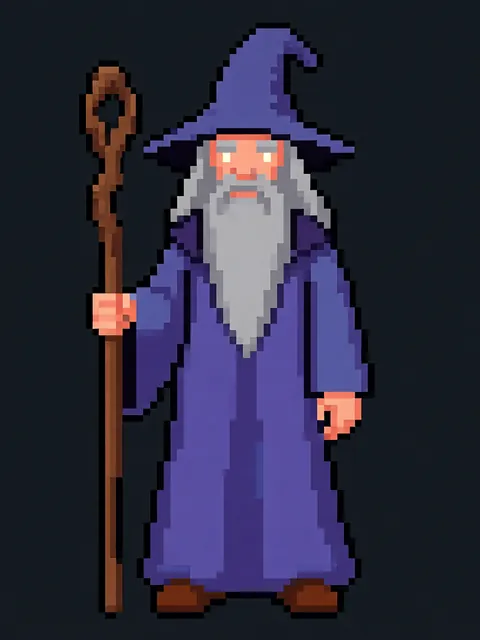
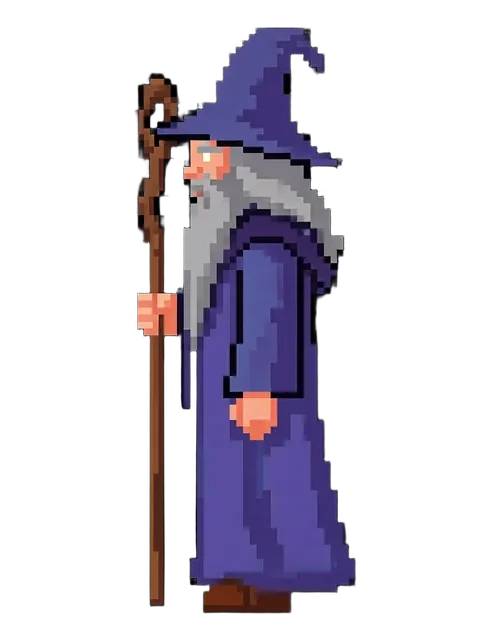
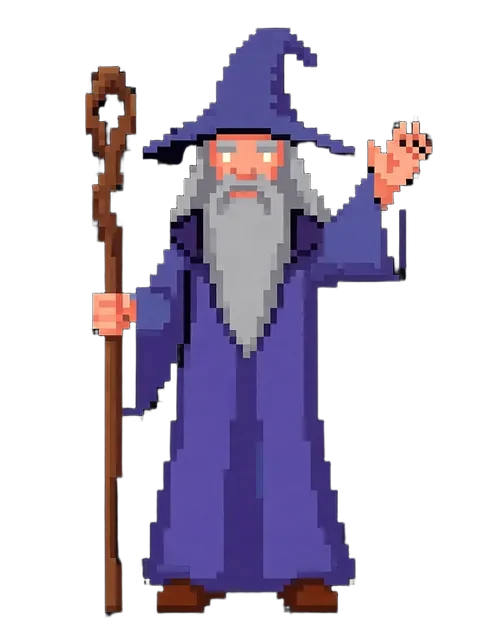
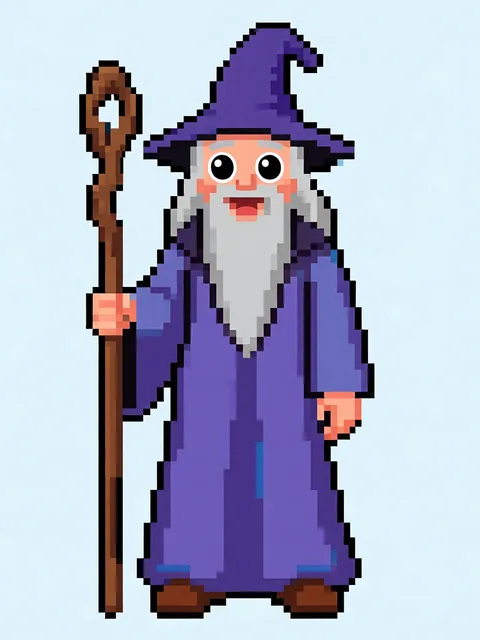
You have a polished illustrated character sheet, but your game engine needs pixel art sprites — not high-resolution digital paintings. Converting between these formats manually is slow, error-prone, and tedious at scale. Each angle must be downscaled consistently, the color palette reduced, and every pixel aligned to a clean grid. Answer: Use a multi-angle AI generator to produce the 8-angle reference sheet first, then apply a structured downscale-and-quantize pipeline that transforms each high-resolution angle into precise pixel art at your target sprite dimensions. This guide covers the complete conversion workflow — from high-res reference generation through indexed color export — so your character art lands in your game engine looking intentional rather than muddy.
- 01
Generate the high-resolution 8-angle reference sheet
Start by creating a complete reference sheet with front, front-three-quarter, profile, rear-three-quarter, and rear views at high resolution (2048x2048 or greater per angle). Consistent identity across all angles is non-negotiable — the AI must lock the character design before any downscaling occurs.
- 02
Downscale each angle to target pixel dimensions with nearest-neighbor sampling
Resize each angle to your target sprite size (16x16, 32x32, or 64x64 pixels) using nearest-neighbor interpolation rather than bilinear or bicubic. Nearest-neighbor preserves hard edges and prevents the blurry anti-aliasing artifacts that destroy pixel art readability. Batch-process all eight angles in your image editor of choice.
- 03
Manually clean stray pixels and align to the pixel grid
Zoom in tight and remove orphan pixels, smooth jagged outlines, and ensure symmetry where appropriate. Use a 1px pencil tool to tighten edges. Enable a pixel grid overlay in Aseprite or Photoshop to verify every pixel snaps cleanly — half-pixel offsets are the enemy of readable sprites.
- 04
Reduce the palette to 16–32 colors with indexed color mode
Convert each sprite to indexed color and clamp the palette to the range your target platform supports (16 colors for retro constraints, 32 for more expressive pixel art). Remove near-duplicate colors manually, preserve specular highlights and shadow tones, and test the reduced palette against different background values to ensure the sprite reads clearly.
- 05
Export as a sprite sheet strip for game engine import
Assemble all eight directional sprites into a single horizontal or grid-based sprite sheet with consistent padding between frames. Use a transparent background PNG at 1x resolution. If your engine (Unity, Godot, GameMaker) requires a specific sprite-slice metadata format, generate that alongside the export so the animation controller maps directions correctly.
- Always downscale from a clean high-res reference — fixing pixel-level errors on 16x16 sprites is far harder than getting the source right first.
- Use nearest-neighbor resampling exclusively; bilinear and bicubic introduce blur that ruins pixel art edge definition.
- When reducing the palette, keep at least 2–3 shadow tones per material type to preserve depth in side and rear angles.
- Test every sprite angle against a mid-gray background and a dark background to catch contrast issues before engine import.
- Aseprite is purpose-built for this workflow — its indexed color mode, pixel grid, and sprite sheet export tools are worth the license cost.
- Label each sprite layer or file with the angle name (front, profile, etc.) to avoid mix-ups when assembling the strip.
- For 16x16 sprites, exaggerate key features like eyes, weapons, and silhouettes — subtle detail disappears at that resolution.
- Version your sprite sheets with the palette size and target resolution in the filename, e.g., `knight_32px_24color.png`, so you can iterate without confusion.
Frequently asked questions
What resolution should my high-res reference sheet be before downscaling?
Can I convert a character sheet to pixel art using only free tools?
What file format should my sprite sheet use for Unity or Godot import?
How many sprites can I generate on the free tier?
Ready to create consistent character views?
Upload a reference image and generate multi-angle views that stay true to your character.
Start generating