
Generate Multi-Angle Views in UI Kit Flat Interface Style
Answer: UI kit flat interface style is the clean, geometric illustration language powering modern SaaS products like Notion, Linear, and Figma. Characters use simplified forms (circle heads, rounded-rectangle bodies), a tight 4-6 color brand palette, and zero gradients or drop shadows. The goal is readability at every UI size — from a 48x48px avatar to a full 800px onboarding illustration. Multi-angle generation means your character stays pixel-consistent across every view: front, three-quarter, side, and back. This guide shows you how to produce an 8-angle flat UI character set that a product designer can drop straight into in-app flows, error states, achievement badges, and empty-state illustrations.
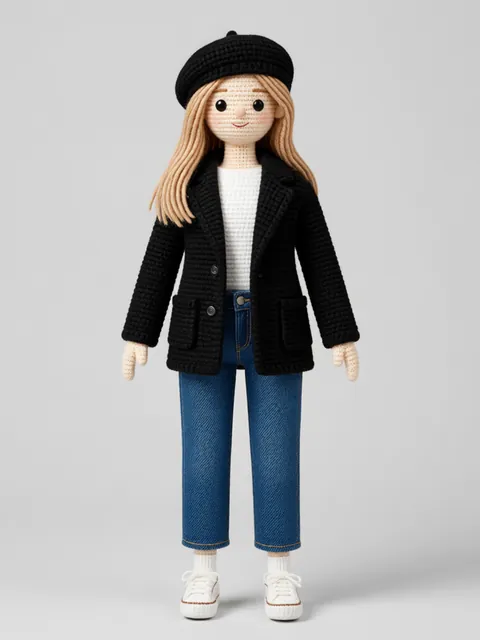
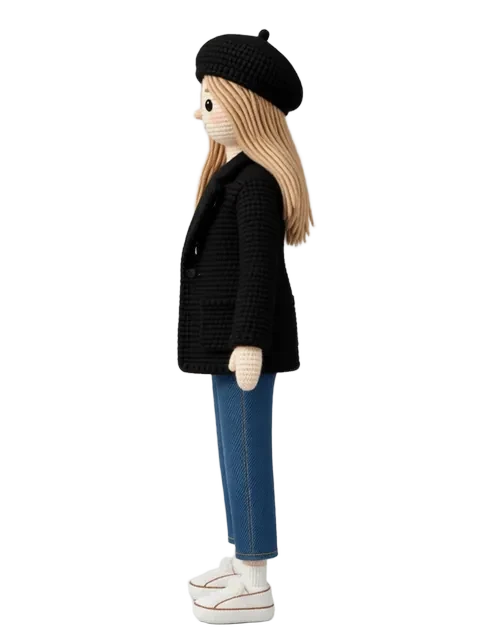
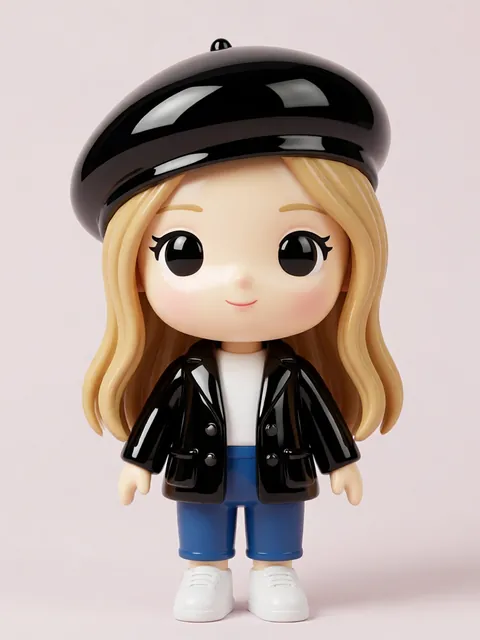
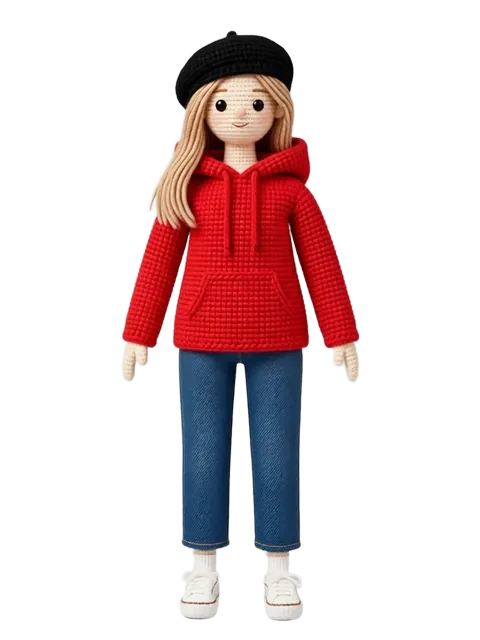
- 01
Design character with geometric simplification
Start with pure geometric primitives: a circle head (no neck), rounded-rectangle torso, simple cylinder limbs, minimal facial features (dot eyes, single-line mouth). Strip every non-essential detail — no hair strands, no fabric folds, no finger definition. The character must read at 48x48px. Test this by zooming your artboard to 12.5% before adding detail.
- 02
Generate 8-angle set in flat UI illustration style
Lock in your prompt with the geometric character description and generate front, front-three-quarter, side, rear-three-quarter, back, back-three-quarter-opposite, opposite-side, and front-three-quarter-opposite views. Use terms like "flat vector illustration style," "no gradients," "no drop shadows," "clean geometric shapes," "UI kit character style." Verify each angle retains identical proportion ratios and the same geometric simplification level.
- 03
Limit to 4-6 brand colors with no gradients
Define your palette before generation. Example: primary blue #4F46E5, secondary coral #FB7185, neutral warm gray #F1F5F9, outline charcoal #1E293B, accent mint #34D399, and white. Every angle must use only these colors. Reject any output that introduces a rogue gradient, a seventh color, or an unlisted shade. Consistency here is what makes the set feel like a real design system asset.
- 04
Verify the character reads at small UI sizes
Create a test grid: place every angle at 48x48px, 96x96px, 200x200px, and 400x400px on one canvas. The character silhouette must be recognizable at 48px. Facial expression must be legible at 96px. If any angle fails, regenerate with simplified geometry before moving on. This gate saves you from shipping an illustration set that breaks in its most common deployment size.
- 05
Export SVG-friendly PNGs for product designer handoff
Export each angle at 2x the largest intended display size (minimum 800x800px PNG, transparent background). Name files consistently: character-name_front.png, character-name_three-quarter.png, et cetera. Include a palette reference card (swatches with hex codes) and a sizing cheat sheet showing each angle at 48px, 96px, and 200px. Package everything in a single .zip with a README.txt noting the brand colors used and any angle-specific notes.
- Use the same geometric primitive vocabulary in every prompt — consistency is the whole game with UI kit style.
- Pick brand colors that pass WCAG AA contrast at small sizes; pastels wash out below 96px.
- Generate one angle first, lock in the exact prompt that works, then use it as the base for all eight.
- If the character has glasses, reduce them to a single rounded-rect with no nose bridge — detail kills legibility.
- Reject any angle where limb proportions drift more than 5% from the master front view.
- Export at 2x resolution as a habit — product designers will resize down, never up.
- Include a 1x transparent padding buffer around each export so designers can drop them straight into Figma frames.
- Test your set in a real UI mockup (even a simple one) before calling it done — an error-state illustration reads differently than an onboarding hero.
Frequently asked questions
What makes UI kit flat style different from regular flat illustration?
Can I use this style for dark mode interfaces?
How many angles do I actually need for a product illustration set?
Can I generate UI kit flat characters on the free tier?
Ready to create consistent character views?
Upload a reference image and generate multi-angle views that stay true to your character.
Start generating