
Generate Consistent AI Characters for Facebook Reels
Facebook Reels share the 9:16 vertical format with Instagram Reels but reach a fundamentally different audience: older demographics, community-group members, and local business followers. A consistent character that bridges Facebook Groups engagement and Reels visibility creates dual discovery paths — people see your character in their Group feed and again in the Reels tab. The character needs to work in both contexts: professional enough for local business pages, approachable enough for community groups. Answer: Generate the 8-angle character reference sheet in EZ Character. Export front and 3/4 views as transparent PNGs at 1080x1920px. For Facebook-native Reels, import into CapCut and overlay the character onto Facebook-specific content (local business walkthroughs, group discussion prompts, community event previews). For cross-posted Reels from Instagram, use Meta Business Suite to schedule — but create a Facebook-specific thumbnail variant using the 3/4 front view, which performs better than the front view for Facebook's audience. Organize Reels into Facebook Playlists by character theme. The reference sheet means your character is consistent whether the viewer finds you through a Group, a Page, or the Reels tab.
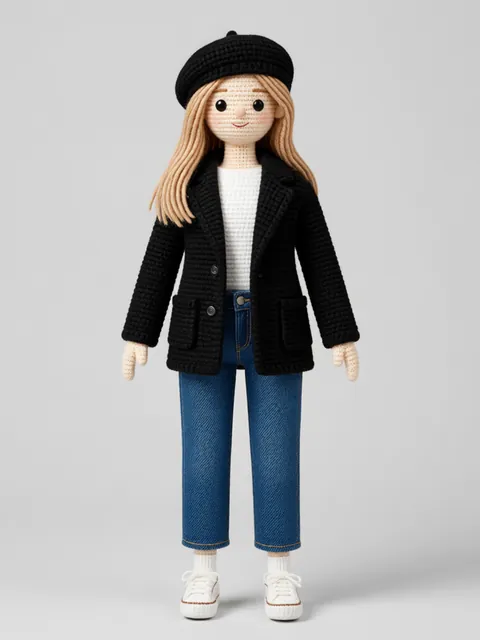
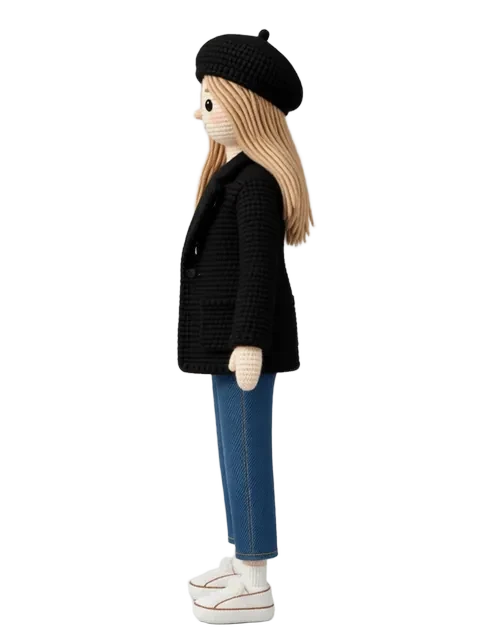
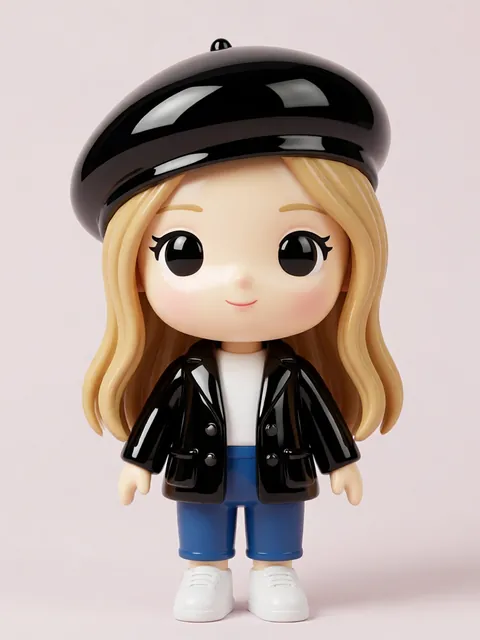
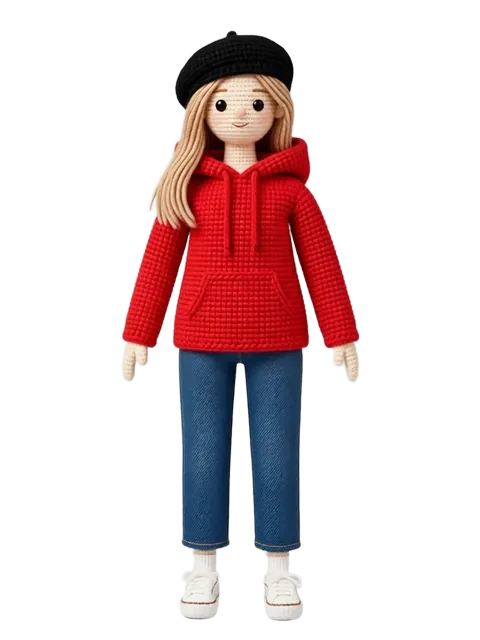
- 01
Generate the 8-angle character reference sheet
Upload your character design to EZ Character. Generate the full turntable: front, 3/4 front, profile, 3/4 back, back, and mirrored angles. Export each as a transparent PNG at 1080x1920px — the standard 9:16 vertical resolution shared by Facebook Reels and Instagram Reels.
- 02
Create Facebook-native Reels with CapCut
For Reels created specifically for Facebook (not cross-posted), import your character PNG into CapCut. Facebook's audience skews older than Instagram — content themes that work: local business spotlights, community event previews, how-to tutorials, and group discussion prompts. Overlay the character onto relevant B-roll or a branded background. Export at 1080x1920px, 30fps.
- 03
Optimize Instagram-to-Facebook cross-posting in Meta Business Suite
When cross-posting Reels from Instagram to Facebook via Meta Business Suite, the same character PNG works on both platforms. But Facebook's audience responds differently to thumbnails — create a Facebook-specific variant using the 3/4 front view (warmer, more approachable) instead of the front view (direct, which reads as aggressive to older demographics). Upload the alternate thumbnail in Meta Business Suite before publishing.
- 04
Distribute Reels in Facebook Groups
Facebook Groups are a distribution channel unique to Facebook — no other platform has the same group engagement depth. Post your character Reels in relevant Groups where your audience spends time. The character becomes a familiar face within the Group, which increases Reel completion rate and share rate. Groups show Reels in a dedicated tab — consistent character branding helps your Reels stand out from generic Group content.
- 05
Schedule with Meta Business Suite and review analytics
Use Meta Business Suite to schedule Facebook Reels in advance. Create a posting calendar organized by character content themes. Review Meta Business Suite analytics weekly — check "Reels reach" broken down by Facebook-native vs cross-posted, "average watch time" by Group vs Page distribution, and "shares" as a percentage of reach. Use the data to decide whether Facebook-native Reels or cross-posted Reels drive more engagement for your character content.
- Facebook's Reels audience is 35+ on average — the 3/4 front character view reads as warmer and more approachable than the front view, which can feel confrontational to older viewers
- When cross-posting from Instagram, always upload a Facebook-specific thumbnail in Meta Business Suite — Instagram thumbnails often include design elements that don't translate to the Facebook feed
- Facebook Groups have a dedicated Reels tab — post your character Reels to Groups first, let them get Group engagement, then share to your Page for a second distribution wave
- Meta Business Suite scheduling supports "optimize for each platform" — use this setting to let Meta auto-adjust your Reel's thumbnail and description for Facebook vs Instagram
- For local business character Reels, include location tags in the Reel description — Facebook surfaces location-tagged Reels to nearby users and in local business search results
- Create a Facebook Reels Playlist named after your character — "Adventures with [character name]" organizes your content and Facebook surfaces Playlists as a bingeable unit
- Facebook Reels can be up to 90 seconds (longer than Instagram's limit at time of writing) — use the extra time for tutorial-style content where the character guides viewers through multi-step processes
- Monitor "Reels from this Page" in Meta Business Suite — if cross-posted Reels underperform Facebook-native Reels, the Instagram-first thumbnail or caption style may be the culprit
Frequently asked questions
What resolution should I use for Facebook Reels character content?
Can I cross-post the same Reel with my character from Instagram to Facebook?
Should I post my character Reels in Facebook Groups or on my Page first?
Can I use the free tier for a Facebook Reels content series?
Ready to create consistent character views?
Upload a reference image and generate multi-angle views that stay true to your character.
Start generating