
Create Top-Down Character Views with Overhead Camera
Top-down character views are essential for an enormous range of games — from classic 2D Zelda-likes and RPG Maker projects to modern tactical map tokens, dungeon crawl markers, and MOBA minimap icons. The challenge with top-down rendering is getting a true overhead angle that doesn’t skew the character’s proportions. EZ Character’s camera controller lets you set elevation to a near-vertical +85 to +90 degrees, positioning the camera directly above the character for a clean bird’s-eye view with consistent orientation. Answer: Set elevation to maximum overhead, center the azimuth for directional consistency, frame the character head-to-toe from above, and generate the top-down view — perfect for RPG Maker sprite sheets, tactical map tokens, dungeon crawl character markers, and any game where the player sees the world (and characters) from directly above.
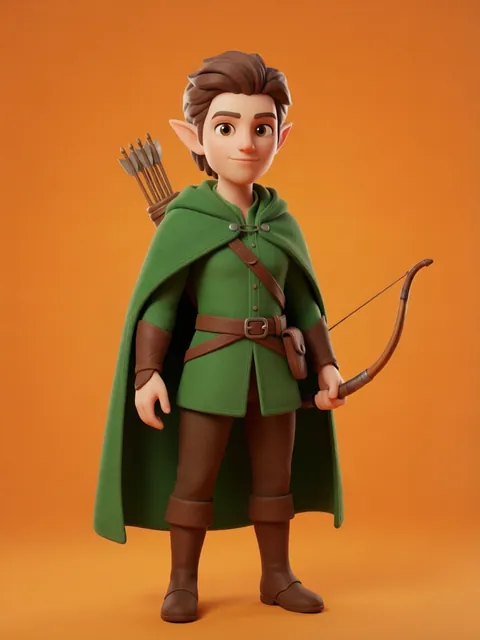
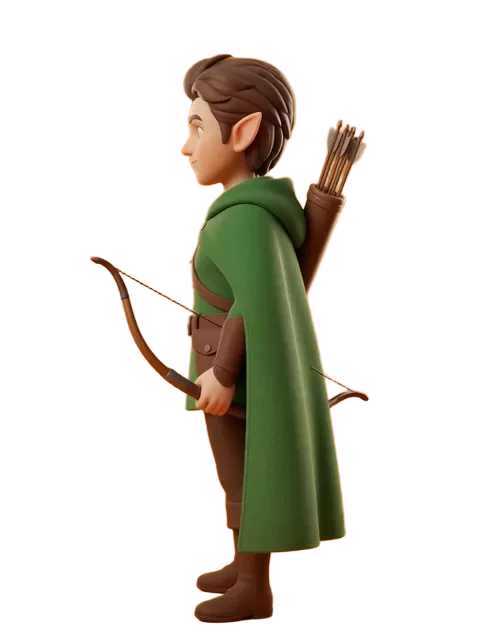
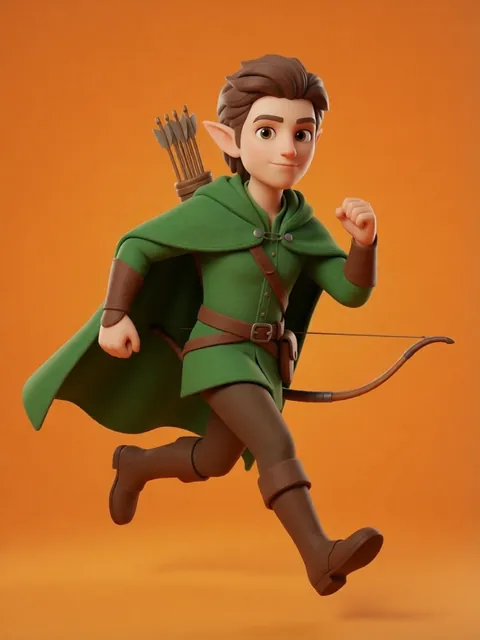
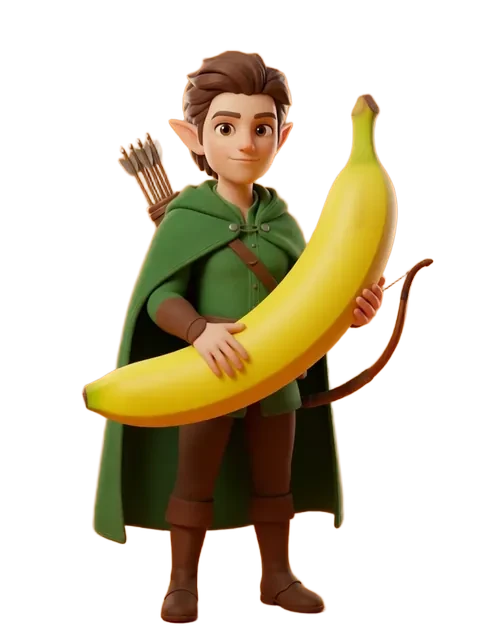
- 01
Set camera elevation to +85-90 degrees (near-directly overhead)
Use the elevation slider to tilt the camera upward until it reaches +85 to +90 degrees — nearly or fully perpendicular to the ground plane. At +90 degrees, the camera looks straight down, seeing the character from the exact top. At +85 degrees, you get a very slight angle that preserves a hint of facial features and body depth while still reading as top-down. The difference is subtle but important: true +90 is pure overhead (best for tokens), while +85 retains a whisper of perspective (better for sprites that need directional readability).
- 02
Center azimuth for consistent top-down orientation
Set azimuth to 0 or 90 degrees as your reference heading for all top-down renders. Unlike isometric or perspective views where azimuth rotation dramatically changes what’s visible, top-down azimuth primarily determines which direction the character faces. Pick a convention — character facing "up" on screen (azimuth 0, toward top of frame) is standard for RPG Maker and most 2D top-down engines — and lock it across all renders so your sprite set has consistent facing direction.
- 03
Adjust distance to frame character head-to-toe from above
From the overhead position, pull the camera back until the character’s full body fits in frame with generous padding. Top-down views compress height information — a character’s full body length projects to a relatively compact shape — so you need more distance than you might expect. Include space for outstretched arms, weapons held overhead, capes, or wings. A good rule: the character’s longest axis (typically arm span or height) should occupy about 70% of the frame diagonal for clean token compositing.
- 04
Generate top-down character view
Initiate generation with the camera locked at your chosen overhead elevation and azimuth. EZ Character renders the character from directly above, capturing the top-of-head, shoulders, arm positions, and any held items from the bird’s-eye perspective. For character classes or archetypes, the top-down silhouette is the most important read — a knight’s shield and sword, a mage’s staff and robes, a rogue’s dual daggers should all be clearly distinguishable from above. Generate one master view first, verify the silhouette reads clearly, then proceed with any additional directional rotations.
- 05
Export for top-down game engine sprite integration with consistent orientation
Export the top-down render at your game engine’s sprite resolution. For RPG Maker, this is typically 48x48 or 96x96 pixels per character frame. For tactical tokens (Foundry VTT, Roll20, Owlbear Rodeo), export as circular-cropped PNGs at 256x256 or 512x512 with transparent backgrounds. The consistent azimuth setting across all exports means every character in your project shares the same orientation convention — no alternating facing directions or mismatched perspectives when characters stand next to each other on the map.
- Add a subtle drop shadow beneath the character in post-processing — it anchors the floating overhead view to the game floor and dramatically improves spatial readability on tilemaps
- For RPG Maker specifically, the standard character frame is 48x48 pixels for MV/MZ — render at 96x96 from EZ Character and downscale for cleaner edges
- If your game uses 8-directional top-down movement (like CrossCode), generate top-down views at 8 rotation angles (0, 45, 90, 135, 180, 225, 270, 315) for full directional sprite sheets
- Test the top-down silhouette in grayscale first — if the character isn’t recognizable in pure silhouette, adjust the pose (arms away from body, weapons at distinct angles) before generating more angles
- For tactical tokens (D&D, Pathfinder), include a colored ring or base beneath the character in post-processing to indicate faction, status effects, or turn order
- The difference between +85 and +90 degrees matters — +90 is true plan view (no foreshortening), while +85 gives a sliver of facial and chest detail that can help distinguish similar-looking characters
- Export at 4x your final token size and batch-resize — this future-proofs for higher-DPI displays and gives you flexibility to crop or rotate in post
- For dungeon crawl board game pieces, consider a slight +80-degree elevation instead of pure +90 — the small angle lets tabletop players see identifying features (hat color, shoulder emblem) that are invisible from true overhead
Frequently asked questions
What camera elevation is best for top-down RPG sprites?
How do I ensure all my top-down characters face the same direction?
Can I generate top-down views on the free tier?
What export format works best for top-down game sprites?
Ready to create consistent character views?
Upload a reference image and generate multi-angle views that stay true to your character.
Start generating