
Create Character Art for Manga in 3D Render Style
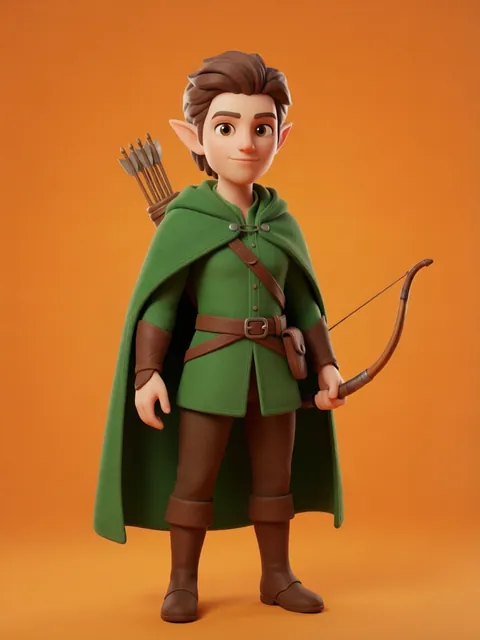
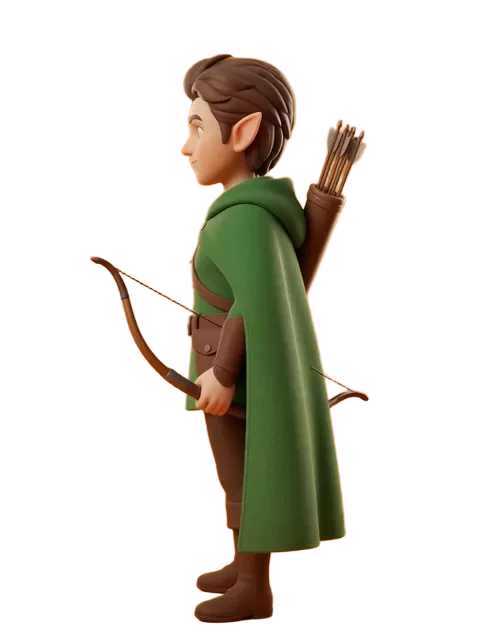
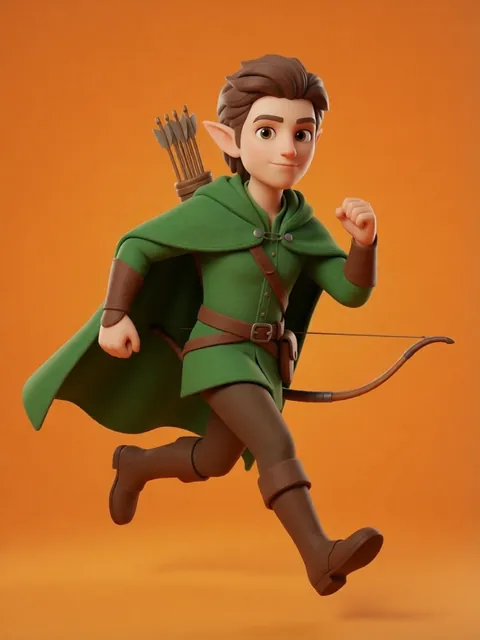
Manga artists spend hours redrawing characters from difficult camera angles because 2D reference sheets flatten perspective. A 3D-rendered 8-angle turnaround gives you exact angle-proportions to trace or reference — low-angle, high-angle, Dutch tilt, anything between. Answer: Upload your manga character design sheet (front, side, three-quarter line art), generate an 8-angle 3D-rendered turnaround with "low-poly 3D render, flat matte material, neutral studio lighting, orthographic projection" in the prompt, then use each rendered angle as a perspective guide layer in your manga software. The 3D render is a reference tool, not a final art style — set reference strength to 0.5 to keep the character likeness but let the 3D engine handle foreshortening.

- 01
Upload your manga character design sheet
Provide front, side, and three-quarter views as clean line art with flat tone markers. The AI needs enough structural information to infer depth — a single front view will give flat 3D results. Include height markers and any asymmetrical design elements.
- 02
Generate 3D-rendered 8-angle turnaround
Prompt with "low-poly 3D render, flat matte material, neutral studio lighting, orthographic projection" to avoid perspective distortion. Reference strength 0.5 preserves character likeness while letting the render engine handle volumetric form.
- 03
Use 3D views as perspective reference for difficult angles
When drawing a panel that needs low-angle or high-angle view, find the closest 3D turnaround angle and trace the major form divisions (head sphere, ribcage box, pelvis tilt). The 3D reference gives you proportion anchors that flat reference sheets cannot.
- 04
Match 3D render style to manga line art
The raw 3D render will look too smooth against your line art. In Clip Studio Paint or Procreate, overlay the 3D reference at 30-40% opacity and draw your line art on top. The 3D layer provides the perspective grid; your line art provides the manga aesthetic.
- 05
Export angle-by-angle for panel composition planning
Save each angle as a separate PNG with transparent background. Import into your manga software as individual reference layers. Rotate between them with keyboard shortcuts while thumbnailing panels — you will find angles you never considered drawing from.
- Orthographic projection in your prompt keeps proportions consistent across angles — perspective projection introduces foreshortening that changes per angle
- Request "flat matte material" not "shiny" — specular highlights in the 3D render will confuse your inking decisions
- Generate at 2x your manga print resolution so line art guides remain crisp when zoomed in
- If the 3D render loses a distinguishing feature (scar, tattoo, hair tuft), regenerate that single angle with reference strength bumped to 0.7
- Keep the 3D renders as a separate reference file — do not flatten them into your manga draft or they will dominate your art style
- For action poses that twist the torso, generate a supplementary 3D pose sheet rather than relying on the static turnaround angles
- Neutral studio lighting is essential — dramatic lighting in the 3D render obscures the form information you actually need
- Use the 3D renders to check proportion consistency across your manga pages — overlay two pages and compare character head heights against the 3D reference
Frequently asked questions
Will the 3D render style clash with my manga line art?
Should I use perspective or orthographic projection for manga reference?
How many angles do I really need for manga reference?
Can I use the 3D renders to check proportion consistency across pages?
Ready to create consistent character views?
Upload a reference image and generate multi-angle views that stay true to your character.
Start generating