
Create Character Art for iOS Onboarding
iOS onboarding flows are 3–6 screens. Each screen needs a different illustration tied to the feature it introduces — yet the character must read as the same entity from screen 1 to screen 6 or the onboarding feels disjointed. Apple’s Human Interface Guidelines favor simple, friendly illustrations over photographic art; multi-angle AI generation gives you the consistency across screens that hand-illustration takes weeks to produce. Render the character once at maximum resolution, generate the multi-angle pack, then crop pose-specific renders for each onboarding step.
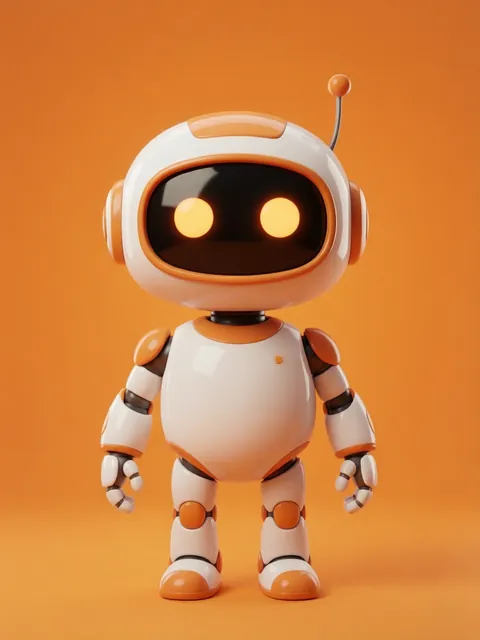
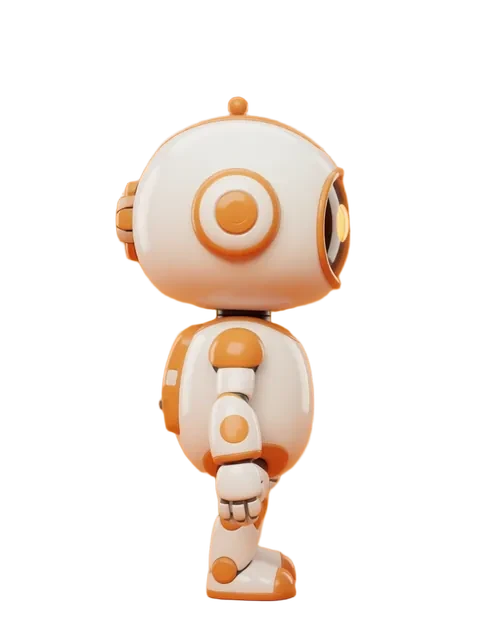
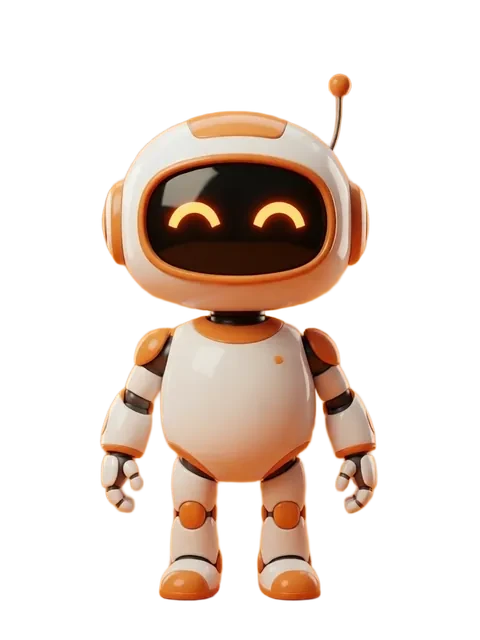

- 01
Map onboarding to character poses
Screen 1 (welcome) = waving / hero pose. Screen 2 (feature intro) = pointing / presenting. Screen 3 (permission) = trustworthy / open. Screen 4 (account creation) = working / setting up. Screen 5 (success) = celebratory. Plan poses before generating.
- 02
Generate the model sheet
Run the 8-angle pack on your hero. The front + three-quarter angles cover most onboarding poses; reserve profile and back for specific permission or "behind the scenes" screens.
- 03
Re-render per pose
For each onboarding screen, re-run the generator with the model sheet locked and a pose-specific prompt. Five screens = five generations; on the free tier (40 credits every month) plan a week, on a subscription do it in one afternoon.
- 04
Export at @1x / @2x / @3x
iOS uses point-based layout: 100pt = 100px @1x, 200px @2x, 300px @3x. Most modern devices want @2x and @3x. Render at AI max (~1MP), export at exact pixel sizes for each density — never let UIImage scale at runtime.
- 05
Test dark mode and reduced motion
iOS users toggle dark mode mid-flow. Render on transparent background and verify silhouette on both light and dark UI. For Reduce Motion users, ensure the onboarding works as a static slide deck (no character animation required for comprehension).
- Apple HIG (2026) favors simple, flat or lightly-shaded character illustration over heavy-rendered 3D — match the system aesthetic.
- Keep accessory and clothing detail minimal — onboarding illustrations display at ~300–400pt; fine detail wastes pixels.
- Onboarding screens are tappable; the character should not block CTAs. Generate offset compositions (character on left or top) leaving CTA real estate clear.
- For SwiftUI, use PDF asset catalog or SVG-traced versions for vector-perfect scaling — raster onboarding art shows pixel artifacts on iPads.
- Test on iPhone SE (smallest device) before the larger Pro Max — onboarding that works on SE works everywhere; the reverse is not true.
- Apple App Review rejects onboarding that feels like a paywall or excessive ad — keep character art light, no aggressive upsell visuals.
- For animated SwiftUI transitions, export the character as separate PNG layers (head, body, arms) so you can spring-animate parts independently without re-rendering.
Frequently asked questions
What size should iOS onboarding illustrations be?
Does iOS onboarding need a different character per screen?
How do I handle dark mode for iOS character art?
Will Apple reject an app for using AI-generated onboarding art?
Ready to create consistent character views?
Upload a reference image and generate multi-angle views that stay true to your character.
Start generating