
How to Import a Character Sprite into RPG Maker MZ/MV
A well-formatted character sprite sheet is the difference between a game that feels polished and one that looks like a prototype. RPG Maker MZ and MV use a specific 12-frame sprite sheet format arranged in 3 columns and 4 rows, with each row representing a walking direction: down, left, right, and up. The frame dimensions are either 48x48 pixels (MZ default) or 32x32 pixels (MV default), and each character sheet must follow strict naming conventions. Answer: You need to generate or convert your character into a 12-frame sprite sheet at your engine’s target resolution, then import it through RPG Maker’s Resource Manager. Save the file with a $ prefix in the characters folder if it is a single character sheet rather than a full 8-character set. This guide covers the complete pipeline from generating character art to seeing your character walk across the map.
- 01
Generate your character views with the AI generator
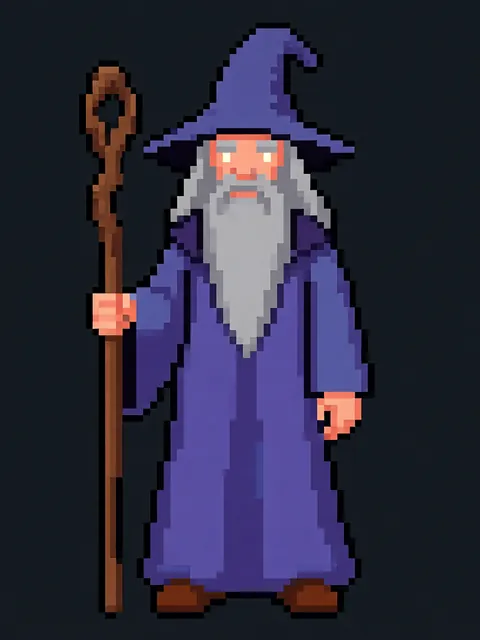
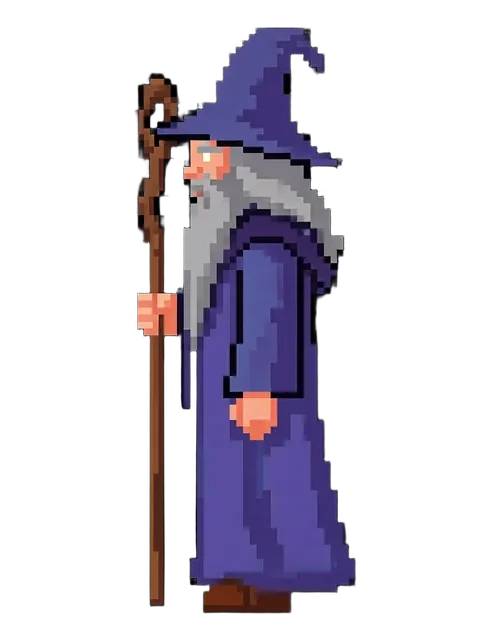
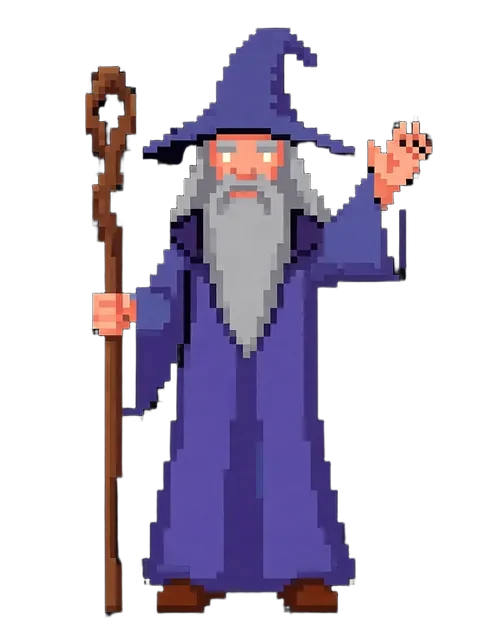
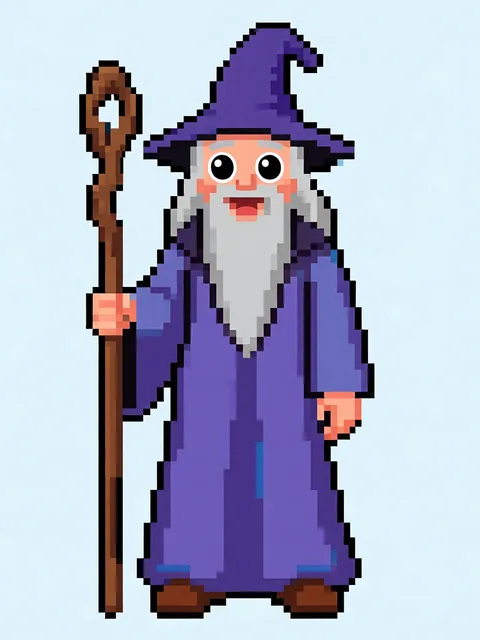
Use the multi-angle character generator to create your character in four directional views: front, left profile, right profile, and back. Select the pixel-art style preset and set your output resolution to match your RPG Maker version (48x48px for MZ, 32x32px for MV). Download all four views as individual PNG files with transparent backgrounds.
- 02
Assemble the sprite sheet grid in an image editor
Open your preferred image editor such as Aseprite, GIMP, or Photoshop. Create a new canvas sized to 144x192 pixels for 48px frames or 96x128 pixels for 32px frames. Arrange your four directional views into rows: row 1 is down-facing (front), row 2 is left-facing, row 3 is right-facing, row 4 is up-facing (back). Each row requires a 3-frame walking cycle per direction.
- 03
Build the walking animation frames per direction
For each direction row, you need three frames: the standing/middle pose flanked by a step-left and step-right frame. In RPG Maker, frames play in sequence as the character walks. Create slight leg displacement on the outer frames, keeping the head position stable. If you lack pixel animation skills, use the generator to export your character with slight pose variations for each step frame.
- 04
Save with correct naming convention
Save your completed sprite sheet as a PNG file. If your sheet contains only one character, prefix the filename with a dollar sign: $Hero.png. Without the $ prefix, RPG Maker expects a full 8-character sheet at 4x the width. Place the file in your project folder under img/characters/. Ensure the file uses an indexed color palette if targeting retro pixel aesthetics.
- 05
Import through RPG Maker Resource Manager
Open your RPG Maker MZ or MV project and launch the Resource Manager from the Tools menu. Navigate to the Characters tab, click Import, and select your sprite sheet file. RPG Maker will preview the sprite grid. Confirm the frame dimensions match your settings (you may need to adjust the grid overlay). Once imported, the character appears in the event editor character picker ready for placement on maps.
- Use Aseprite for pixel-art sprite sheet assembly because it has built-in grid overlay and animation preview features that sync with RPG Maker frame layouts.
- For RPG Maker MZ, enable the 48x48 tile option in System 2 settings to ensure your larger sprites align properly with map tiles.
- If your character appears cut off or misaligned in-game, double-check that the total canvas width is exactly 3x the frame width and the total height is exactly 4x the frame height.
- Create a standalone test map with a single NPC event using your new sprite to verify the walking animation cycles look correct before placing the character throughout your game.
- For MV projects, remember that the default resolution is 816x624, which means 32px sprites appear smaller on screen than MZ sprites do at 48px.
- Keep a master PSD or Aseprite file with layers for each direction so you can easily tweak individual frames without re-exporting the entire sheet.
- When generating sprites with the AI tool, request slightly simplified designs with bold outlines because fine detail blurs into noise at 32x32 or 48x48 resolution.
- RPG Maker UNITE uses a Unity-based sprite system that differs from MZ/MV. If targeting UNITE, export individual frame files instead of a sprite sheet and use the Unity Sprite Editor.
Frequently asked questions
What are the exact sprite sheet dimensions for RPG Maker MZ versus MV?
Why does my imported sprite show up as a blank or garbled mess in RPG Maker?
Can I generate sprites on the free tier of the multi-angle generator?
How do I handle non-human characters like monsters or vehicles in the RPG Maker sprite format?
Ready to create consistent character views?
Upload a reference image and generate multi-angle views that stay true to your character.
Start generating