
How to Import a Character Reference into Blender for 3D Modeling
Every professional 3D character artist starts with reference images. Blender’s ability to display orthographic image references in the viewport makes it one of the most effective tools for translating a 2D character design into a 3D model. By aligning front, side, and back views to the world origin, you create a spatial reference cage that lets you block out anatomy, clothing, and proportions with millimeter accuracy. Answer: Generate a multi-angle character reference sheet from the AI generator, extract the front, right profile, and back views as separate images, then import them into Blender as Empty objects with image textures aligned to the cardinal axes. Scale the reference empties to match real-world character height using Blender’s measurement system, and model directly against them in orthographic view. This setup is the industry-standard approach for character modeling, used in everything from indie game assets to feature film production.
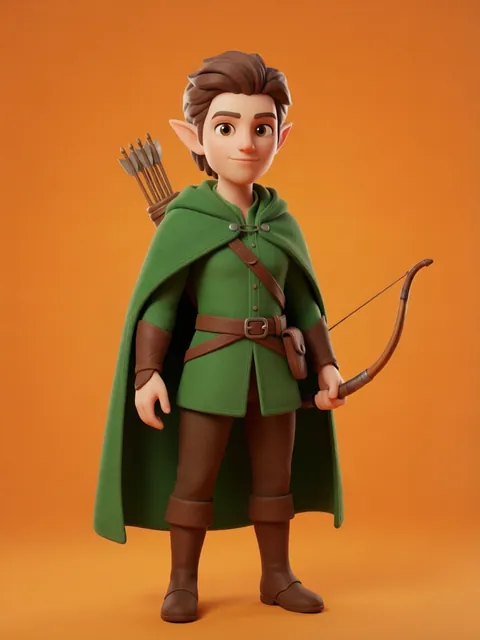
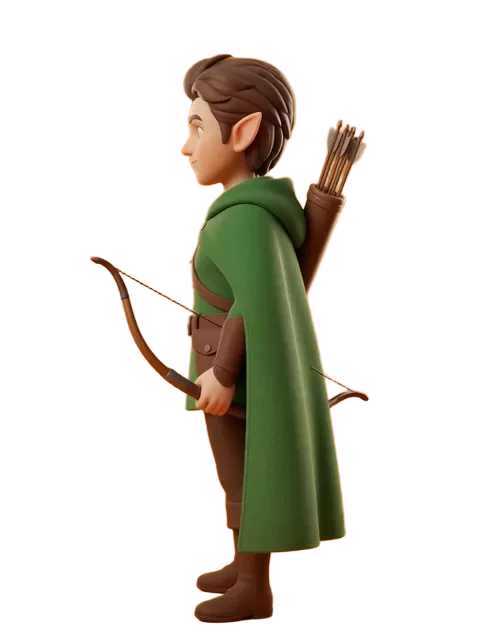
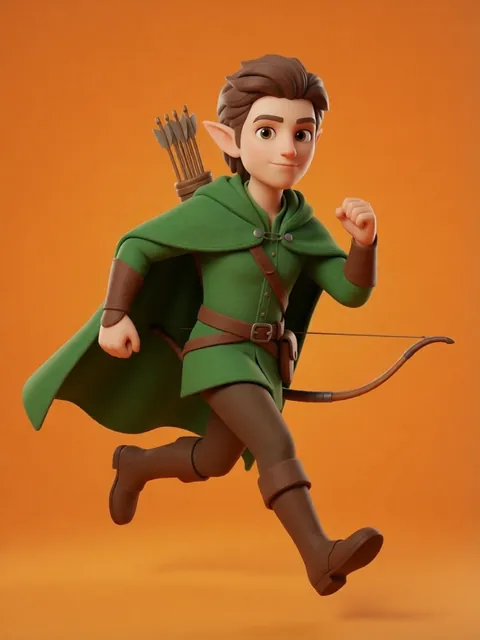

- 01
Generate and extract orthographic character views
Use the multi-angle character generator with the realistic style preset to create an 8-angle reference sheet. Download the full sheet and then use an image editor to crop out three critical views: the front view (character facing camera directly), the right profile (character facing right), and the back view. Save each as a separate PNG file with transparent background at the highest available resolution. Name the files clearly: character-front.png, character-right.png, character-back.png.
- 02
Set up Blender viewport with orthographic reference empties
Launch Blender and delete the default cube. Switch to Front Orthographic view (Numpad 1). In the 3D Viewport, press Shift+A and select Empty > Image. In the file browser, select your character-front.png. The empty appears at the 3D cursor. In the Object Data Properties panel, set the empty’s display type to Image and adjust the transparency slider to 0.4-0.5 so you can see your mesh through the reference. Repeat for the right view in Right Orthographic (Numpad 3), placing the empty at the same world origin.
- 03
Align reference images to world origin and real-world scale
Select each reference empty and zero out its location (Alt+G to clear location, placing it at world origin). The front reference should face the -Y axis and the right reference should face the +X axis. Use Blender’s measurement tools to scale your reference to real-world proportions. A standard humanoid character is roughly 1.7-1.8 meters tall. In the empty’s Object Properties, set the Scale values uniformly until the character’s feet rest at Z=0 and the top of the head reaches approximately Z=1.75 in the viewport grid.
- 04
Configure reference image settings for modeling clarity
In the Shading workspace, assign each reference empty a dedicated material with an Emission shader so the reference is unaffected by scene lighting. In the Object Data Properties for each empty, set the Depth setting to Front so the reference always renders on top of your mesh. Enable X-Ray mode (Alt+Z) in the viewport during early blockout so you can see the reference through your geometry. Lock each reference empty’s selection in the Outliner by clicking the arrow icon next to its name, preventing accidental movement during modeling.
- 05
Begin blocking out the character mesh against orthographic references
Start with a simple cube or use the built-in Human Base Mesh add-on (Edit > Preferences > Add-ons > Add Mesh: Human). Switch between Front (Numpad 1), Right (Numpad 3), and Top (Numpad 7) orthographic views as you extrude, scale, and position vertices to match the silhouette of your reference images. Work from large forms to small details: establish the head, torso, and limb masses first, then refine facial features, hands, and clothing folds. Use the Mirror modifier on the X-axis so you only need to model one half of the character.
- Enable the Images as Planes add-on (Edit > Preferences > Add-ons) for a faster import workflow that automatically creates a plane mesh with the image texture applied and correct aspect ratio.
- Use Blender’s Measure tool (found in the Toolbar under the Measure group) to check character proportions against real-world anatomy references such as the 8-heads-tall figure proportion standard.
- Keep reference empties in a dedicated collection named "References" in the Outliner and toggle its visibility with a single click when you need a clear view of your model.
- For characters with asymmetrical designs, temporarily hide the Mirror modifier and model both sides independently while referencing the front view for accurate detail placement.
- Set the reference empty’s Offset values in Object Data Properties to push the image slightly behind the world origin (e.g., Y Offset -0.01m) so your mesh vertices at the midline do not visually intersect with the reference plane.
- Take periodic screenshot comparisons of your model overlaid on the reference at matching orthographic angles and flip between them rapidly to spot proportion drift that your eyes have adapted to during extended modeling sessions.
- When the character has complex hair or loose clothing, generate a secondary reference sheet with those elements isolated against a plain background so you can toggle between the base anatomy reference and the costumed reference.
- For stylized or non-realistic characters, ignore real-world scale and instead set the reference empties to fill roughly 80% of the viewport height at default zoom for comfortable modeling ergonomics.
Frequently asked questions
What file format and resolution should my reference images be for Blender?
Can I set up Blender character references on the free tier?
How do I use Grease Pencil to trace over reference images in Blender?
Which Blender version is required for the empty image reference workflow described here?
Ready to create consistent character views?
Upload a reference image and generate multi-angle views that stay true to your character.
Start generating