
How to Generate a Character for a Twitter/X Header
A Twitter header featuring your original character is the largest canvas on your profile and the strongest visual statement you can make before anyone reads a single tweet. The header’s 1500x500 pixel dimensions create a wide, shallow 3:1 aspect ratio that requires deliberate composition to work with rather than against. The biggest pitfall is forgetting that the profile picture blocks the leftmost 400 pixels of the header on desktop, and on mobile the crop gets even tighter. Answer: Generate your character in a strong hero pose from the multi-angle generator, then compose the image at 1500x500 pixels with the character offset to the right of center so the face and key details land in the visible area. Leave the left 400 pixels clear of critical visual information, add your brand name or tagline on the right side, and export at double resolution at 3000x1000 pixels for HiDPI displays. This approach ensures your character header looks sharp and properly composed on every device.


- 01
Generate a character in a hero pose at high resolution
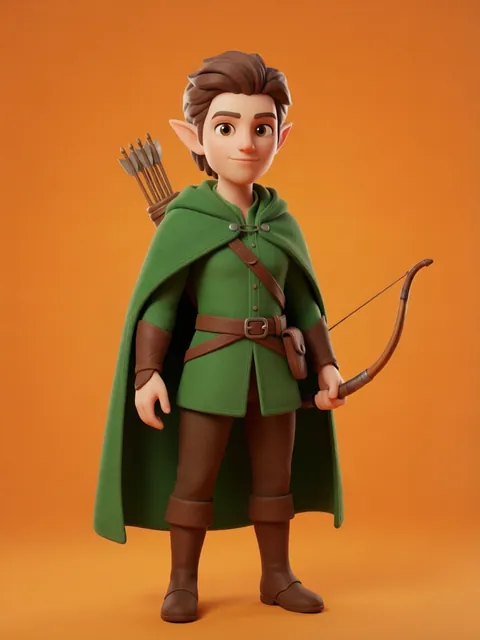
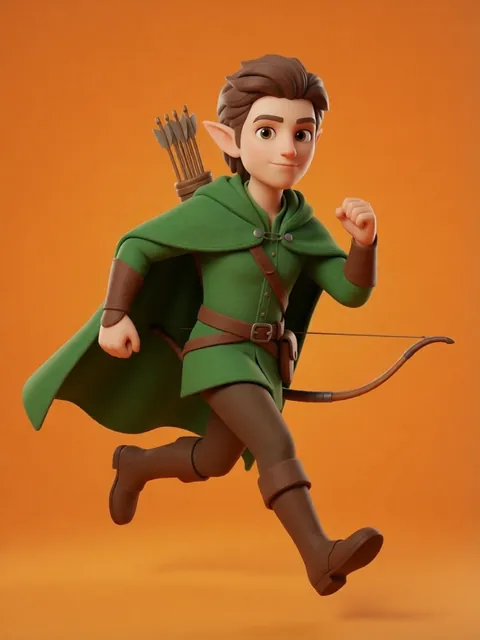
Use the multi-angle character generator with the cartoon style preset to create your character in a dynamic hero pose. A three-quarter view with the character facing toward the center of the frame works best for header composition. Generate at the highest available resolution. The character should fill roughly 40-50% of the vertical frame once composed, leaving room for the wide horizontal format. Download the full-resolution output with a transparent background for maximum composition flexibility.
- 02
Compose the 1500x500px canvas with the character offset right of center
Open your image editor and create a 1500x500 pixel canvas. Place your character so their face and upper body land in the right 60% of the frame. Aim for the character’s face center to sit at roughly the 900-1000px horizontal mark. This offset ensures the face is visible on desktop (where the avatar blocks the left ~400px), on tablet (where the avatar moves to center), and on mobile (where the header crops to approximately 1:1 around the center). The character’s eyes should sit at roughly the upper third of the 500px height.
- 03
Keep the left 400 pixels clear of critical character detail
Designate the left 400 pixels as a safe dead zone where no essential visual information lives. This area will be covered by your profile picture on desktop. Fill this zone with background color, abstract shapes, a gradient extension of your brand palette, or atmospheric elements that complement but do not compete with the character. Never place text, faces, or detailed character features within this left zone. On mobile, the crop is even more aggressive: the center 500x500 pixel square becomes the mobile header, so test your composition at that crop.
- 04
Add brand name or tagline to the right side of the header
Place your channel name, brand handle, or a short tagline in the right portion of the header where the eye naturally lands after the profile picture and character. Use a bold, readable sans-serif font at a size that reads clearly on mobile. Keep text to 3-5 words maximum. Position text in the lower-right or upper-right quadrant, avoiding overlap with the character’s face. The text color should contrast strongly with the background. Add a subtle drop shadow or text background bar if the underlying image has variable brightness.
- 05
Export at 2x resolution for HiDPI displays
Scale your completed 1500x500px composition to 3000x1000 pixels using your editor’s resize tool with bicubic or Lanczos resampling. Export as JPEG at 85-90% quality to stay under Twitter’s 5MB file size limit. If the file exceeds 5MB at 3000x1000px, reduce JPEG quality to 80% before reducing resolution. Upload the 3000x1000px version to Twitter. The platform will serve the appropriate resolution based on the viewer’s device, and the 2x export ensures your character art stays sharp on Retina and high-DPI screens.
- Preview your header composition using Twitter’s built-in header preview tool before finalizing. Upload your header to a private or test account first to check how it displays at desktop, tablet, and mobile breakpoints.
- Use a gradient background that fades from your brand color on the left to a complementary tone on the right so the dead zone created by the profile picture looks intentional rather than empty.
- Match your header’s color palette to your profile picture’s colors so the overall profile page looks cohesive. A jarring color clash between the avatar and header immediately signals amateur production values.
- Twitter compresses header images, so add a subtle sharpen filter (unsharp mask at radius 0.8px, amount 40-60%) before export to counteract the platform’s softening pass at standard display resolutions.
- If you plan to update your header seasonally or for specific events, save a template file with layer groups for your character, background, and text so you can swap elements without rebuilding the entire composition.
- For animated character headers, Twitter supports GIF headers under 5MB. Generate a subtle looped animation such as hair movement or a blinking character using a 2-3 frame cycle at 1500x500px.
- Avoid placing critical character detail near the bottom 50 pixels of the header on the right side, as some Twitter clients and browser extensions add UI overlays in this region that can obscure your art.
- Test your header against both light and dark Twitter themes. A header that looks great on dark mode may wash out on light mode. Use mid-tone backgrounds or add a semi-transparent overlay to maintain contrast in both modes.
Frequently asked questions
What are the exact dimensions and file requirements for a Twitter/X header?
Can I generate a Twitter header character on the free tier?
Why does my header look different on mobile versus desktop?
Should I include text in my Twitter header image or rely on my bio?
Ready to create consistent character views?
Upload a reference image and generate multi-angle views that stay true to your character.
Start generating