
How to Generate a Character for Twitch Panels
Twitch panels are the first thing viewers scroll to when they discover your channel, and a consistent character mascot across all your panels creates an instantly recognizable brand that sets you apart from the sea of generic stream layouts. Each panel measures 320 pixels wide by up to 640 pixels tall, and most streamers need between six and ten panels covering About, Schedule, Rules, Donate, Socials, Specs, and other sections. Answer: Generate a multi-angle character reference first to establish your mascot’s look from all sides. Then pick the front and three-quarter views to serve as the base pose for each panel. Create a pose variant per panel purpose, such as a waving pose for the About panel or a pointing pose for the Schedule panel, and export each as a 320x640px PNG with a transparent background. Upload the set through the Twitch Creator Dashboard under Brand Settings. A unified character across all panels reinforces your channel identity and boosts viewer recognition.


- 01
Generate an 8-angle character reference to establish consistency
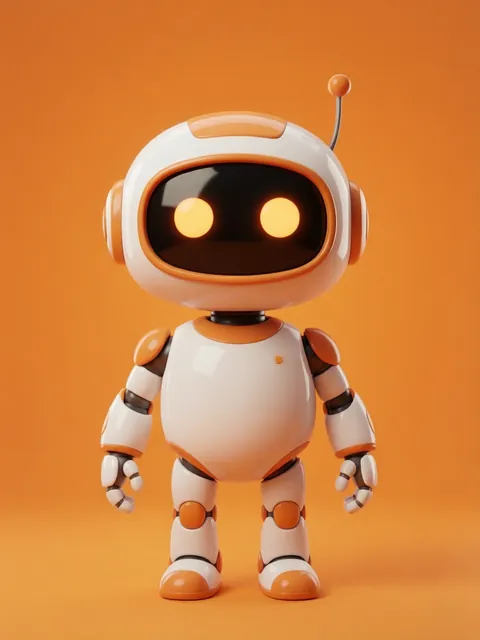
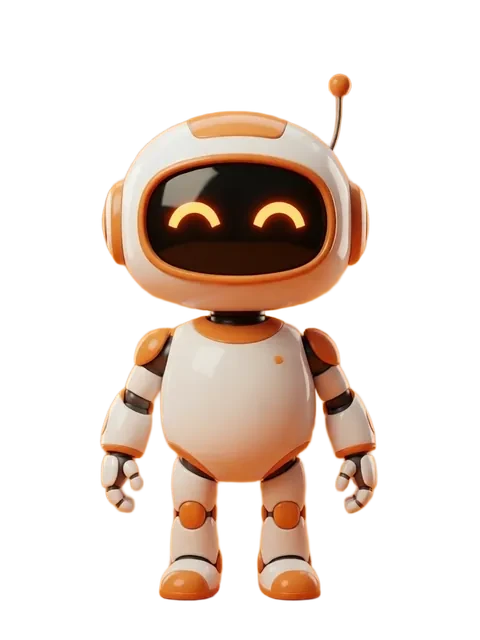
Start by using the multi-angle generator in cartoon style to create a full 8-angle reference sheet of your stream mascot character. This reference ensures every panel variation of your character looks like the same person. Pay special attention to distinctive features like hair color, clothing, and accessories that will make your character recognizable even in small panel thumbnails. Download the reference sheet and keep it open as a visual guide for the next steps.
- 02
Choose base views and plan panel-specific poses
Select the front and three-quarter views from your reference as the most panel-friendly angles. Map out which pose fits each panel purpose: a waving hand for the About panel, a playful salute for Rules, a character pointing at a clock for the Schedule panel, a heart-hands gesture for Donate, a phone-holding pose for Socials, and a flexing pose for Specs. Write down the pose list so you have a clear production plan before generating any panel art.
- 03
Generate each panel character variant with pose descriptions
For each panel in your list, use the generator with your character reference as the base input and add a pose prompt describing the specific action. For example, "character waving with right hand, friendly smile, standing pose, clean white outline." Generate at a resolution of at least 640x1280px so you have headroom for cropping to the 1:2 panel aspect ratio. Review each output against your reference sheet to confirm character consistency across the set.
- 04
Size and export each panel as 320x640px PNG with transparency
Open each generated character in an image editor. Crop or canvas-resize to the 320x640px Twitch panel specification. Position your character so it occupies roughly 60-70% of the canvas height, leaving room at the top and bottom for optional text overlay you may add later in the Twitch panel editor. Ensure the background is fully transparent. Export as PNG-24 with transparency preserved. Keep each file under 2MB, which is Twitch’s panel image upload limit.
- 05
Upload panels to Twitch Creator Dashboard
Navigate to your Twitch Creator Dashboard and go to Settings > Channel > Brand. Scroll to the Panels section at the bottom. Click Add Panel for each panel slot, upload the corresponding character PNG, and enter the panel title and description text. Use the built-in Twitch panel editor to add text overlay directly on the platform if preferred. Preview your channel page as a viewer to confirm all panels display correctly with consistent sizing and no clipping.
- Twitch compresses panel images, so export with a subtle sharpen filter applied and avoid ultra-fine detail that will turn muddy after the platform’s JPEG conversion pipeline.
- Add a 2-3px white or brand-color outline stroke around your character in each panel export so it pops against Twitch’s dark mode background, which is the default for most viewers.
- Create a matching offline banner (1920x1080px) and profile picture (256x256px) featuring the same character to complete the channel branding trifecta.
- Use the same character reference sheet to generate emotes at 112x112px, 56x56px, and 28x28px sizes for subscriber emote slots that visually match your panel character.
- If you stream across multiple categories, generate a "neutral" version of each panel that works across game genres so you do not need to rebuild panels when switching content.
- Test your panels on both desktop and mobile Twitch because mobile collapses panels into a different layout and your character positioning should read well at smaller sizes.
- Keep a master PSD or Figma file with each panel as a separate layer set so you can update text overlays, seasonal theming, or sponsor callouts without regenerating the character art.
- When adding text overlay to panels in an external editor rather than Twitch’s built-in editor, use a bold sans-serif font at 28-36pt for readability on 320px-wide panels at typical viewing distances.
Frequently asked questions
What are the exact pixel dimensions and file requirements for Twitch panels?
Can I generate Twitch panel characters on the free tier?
How do I keep my character looking consistent across multiple Twitch panels?
Should I add text to my Twitch panels in the image file or use the Twitch panel editor?
Ready to create consistent character views?
Upload a reference image and generate multi-angle views that stay true to your character.
Start generating