
How to Create Low-Poly 3D Character Art for Indie Games
Translating a 2D character design into a low-poly 3D model is one of the trickiest parts of indie game development. Your modeler needs clean orthographic reference plates — front, side, and back views with unambiguous topology cues — to build a game-ready mesh without guesswork. Concept art that looks great as an illustration often hides details a 3D artist needs to see. Answer: Design your character with the low-poly aesthetic preset (flat shading, faceted surfaces, minimal vertex count) and generate an 8-angle turnaround with clean geometric forms. Extract the front, side, and back views as orthographic reference plates, annotate key topology lines and edge flow on the reference, then import into Blender as background image reference aligned to the orthographic viewport for direct polygon modeling.
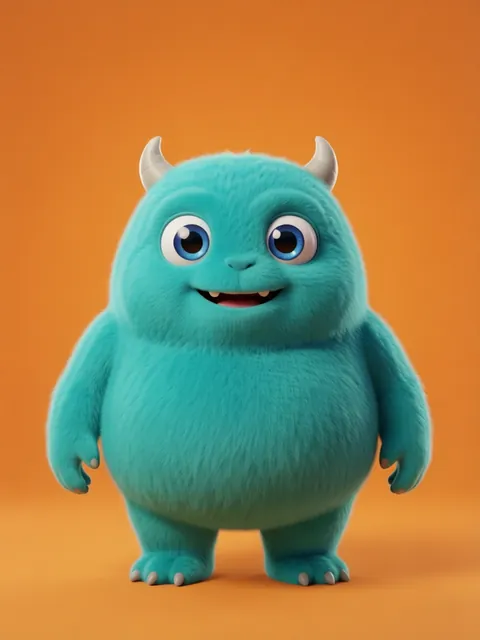
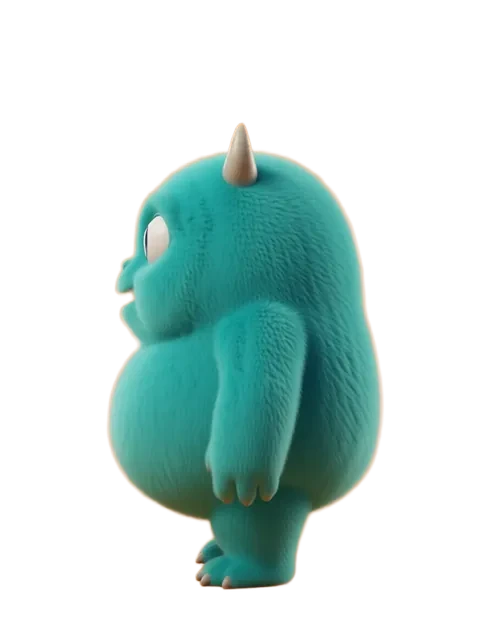


- 01
Design character with low-poly aesthetic constraints
Describe or upload your character with emphasis on geometric readability: blocky hair shapes, faceted clothing folds, simplified anatomy. The low-poly preset enforces flat-shaded rendering with visible polygon facets — this deliberately surfaces the geometry your 3D modeler needs to replicate rather than hiding it behind smooth shading.
- 02
Generate 8-angle turnaround with clean geometric forms
Run the multi-angle generation with low-poly style activated. The output produces 8 views rendered with flat normals and minimal vertex-count aesthetic — front, front-right, right, back-right, back, back-left, left, front-left. Each angle maintains consistent facet placement so the modeler sees exactly how surfaces connect across views.
- 03
Extract front, side, and back as orthographic reference plates
From the 8-angle set, pull the front (0 degrees), right side (90 degrees), and back (180 degrees) views as your primary orthographic references. These three plates provide the essential 2D projections a modeler needs to block out the character in Blender or Maya using standard front/side/top viewport alignment.
- 04
Annotate edge flow and key topology lines on reference
Overlay annotation lines marking key topology decisions: jawline edge loops, shoulder-to-armpit transitions, knee joint placement, and any non-obvious surface breaks. Use a bright contrasting color (cyan or magenta) so annotations stay visible when the reference is dimmed behind the 3D viewport.
- 05
Import into Blender as background image reference for modeling
In Blender, add each orthographic plate as a background image in the corresponding viewport (front image in front view, side image in right view, back image in back view). Align and scale the references to match, then begin polygon modeling directly over the reference plates for accurate low-poly topology.
- Generate at 2048x2048px square per angle — this gives enough resolution for edge detail without bloating viewport performance in Blender.
- Request the "wireframe overlay" option during generation to get a secondary set of plates with visible edge lines that map directly to topology.
- Use Blender's "Image to Plane" add-on to place reference images as textured planes rather than background images — easier to toggle visibility and adjust opacity.
- Generate an additional "top-down" view from above the character for crown-of-head topology reference — often the most ambiguous area when modeling from standard orthographics.
- Keep the reference image opacity at 30-40% while blocking out — full opacity hides your mesh behind the reference.
- Export an unshaded/flat-lit version alongside the faceted render for times when lighting on the reference conflicts with viewport lighting.
- For symmetrical characters, model one half and mirror — the reference plates only need to be visible on one side of the model.
- Add dimension notes (total height in Blender units, head-to-body ratio) directly on the annotation layer so the modeler doesn't have to measure manually.
Frequently asked questions
What resolution should orthographic reference plates be?
Can I generate low-poly character references on the free tier?
How is the low-poly style different from other presets?
Does this work for non-Blender 3D software?
Ready to create consistent character views?
Upload a reference image and generate multi-angle views that stay true to your character.
Start generating