

Find your movement.
Upload an MP4 reference clip. Choose a clear performance with a visible subject and the movement you want to transfer.
MOTION TRANSFER / ON EZ CHARACTER
Bring a character and a video with movement you love. Transfer the performance to your image, from a small gesture to a whole new scene.
Your character image + a motion reference video.
01 / BORROW THE MOVEMENT
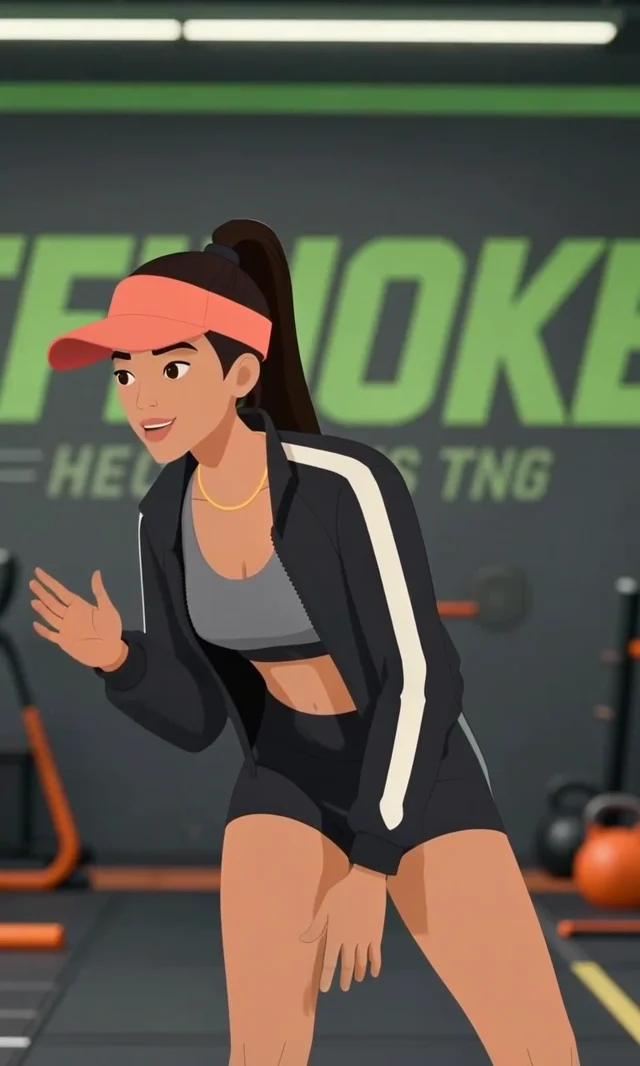
One filmed performance, one illustrated character and the resulting video. Press play to see the reference and result together.
THE MOVEMENT MEETS THE CHARACTER
A filmed performance at the running track.
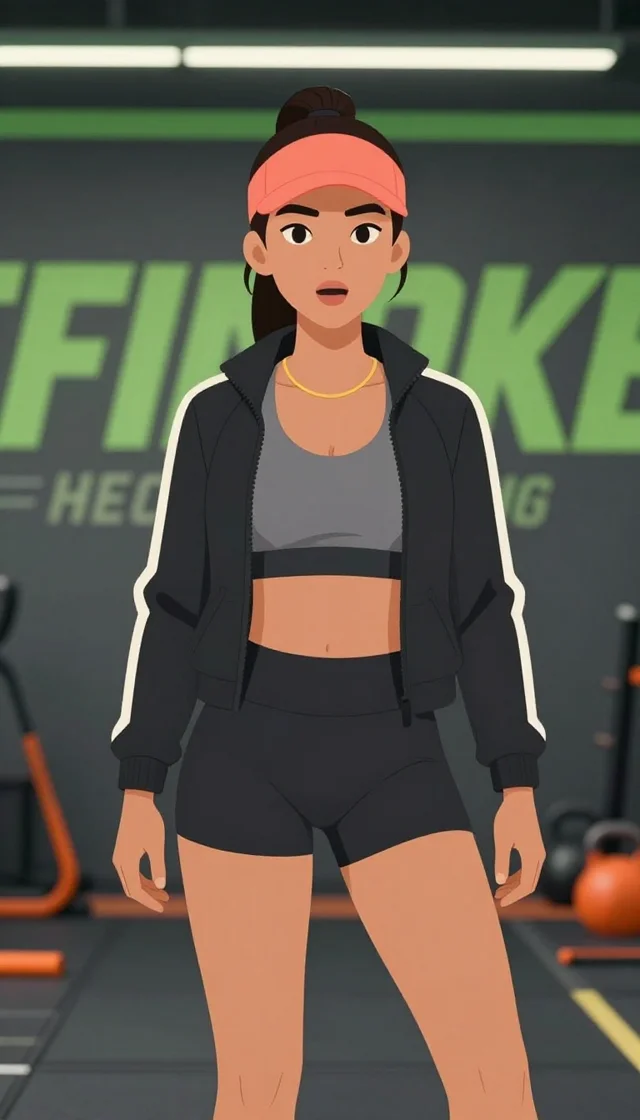
A still image to make your own.
Generated from these two inputs.
02 / YOUR NEXT THREE STEPS
Everything happens in your browser. Your finished work stays in your generation history.
Upload an MP4 reference clip. Choose a clear performance with a visible subject and the movement you want to transfer.
Upload one JPG, PNG or WebP image. Clear features and similar framing give the model a better starting point.
Choose 720p or 1080p, review the credit cost and generate. Download the finished video from your workspace or history.
KNOW BEFORE YOU CREATE
Start with a few seconds of movement. Choose your resolution and see the estimated credit cost before opening the workspace.
Explore plans and credit packsESTIMATE YOUR CLIP
6 credits / second at 720p
Bring your motion clipUses the current tool price. Your uploaded clip’s measured duration determines the final quote.
Animating a character from scratch means keyframes, rigs and a timeline. Motion transfer skips all of that: the movement already exists in a video, and the tool re-performs it with your subject. A reference clip of someone waving, dancing or walking becomes the same action carried out by an illustration, a render or a photo.
The source clip's audio rides along by default, and it also feeds the motion, which is why speech and music-led movement land in time. Turn on Use movement only when you want the picture track alone to drive the result, or turn off Keep source audio for a silent render. The finished clip follows the length of the source you uploaded, measured from the file itself on the server, and that measured duration is what the per-second price is based on.
Every finished video is saved to History, alongside your images. If you would rather describe a motion in words than supply a clip, EZ Animate takes a single image and a text description instead. To swap the person inside an existing video rather than animate a still, use Character Swap.
A LITTLE MORE DETAIL
A clear starting point for your next creation.
Motion transfer takes the movement in a video you already have and applies it to a character image. You upload a motion source clip and one subject image, and the result is a new video of your subject performing the same action, driven by the source's motion and audio.
Two things: an MP4 motion source of 32 MB or less, and exactly one subject image as a JPG, PNG or WebP of 25 MB or less. Both are required before the Generate button will run.
Yes. The source clip's audio is carried through by default with the Keep source audio toggle, and the audio also informs the motion. If you want the movement driven purely by the picture track, switch on Use movement only.
It matches your motion source. The length is measured from the uploaded MP4 on the server rather than taken from the browser, so the clip you get back is the length of the clip you put in — and that measured length is what you are billed for.
720p or 1080p, with a target frame rate of Original, 24 or 48. There is also a Turbo toggle that renders faster at slightly lower quality, and an optional seed if you want to repeat a run.
There is an optional motion instruction box that takes up to 2,000 characters — for example “keep the framing close and preserve the outfit”. Leave it empty and the source motion is followed as-is.
The workspace calculates the price from your source-video duration and selected resolution. The estimate on this page uses the same current rate. Review the final quote after uploading your clip; video generation uses paid-plan or wallet credits.