
EZ Character + Blender: Multi-Angle Reference to 3D Character Pipeline
Generate locked multi-angle character references in EZ Character. Import as orthographic background planes in Blender. Sculpt, rig, and render with confidence.
Why this combination
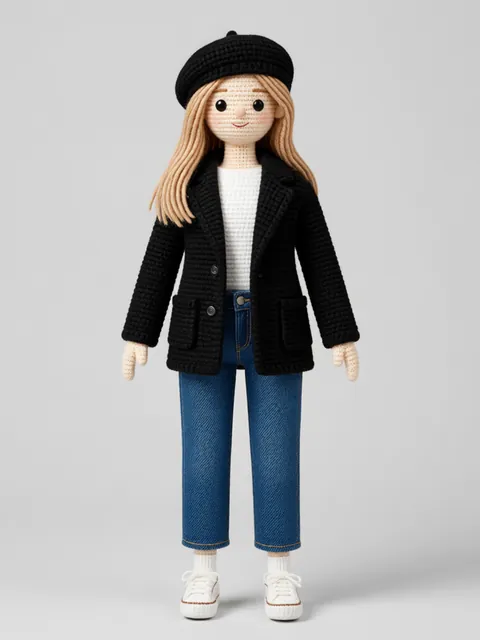
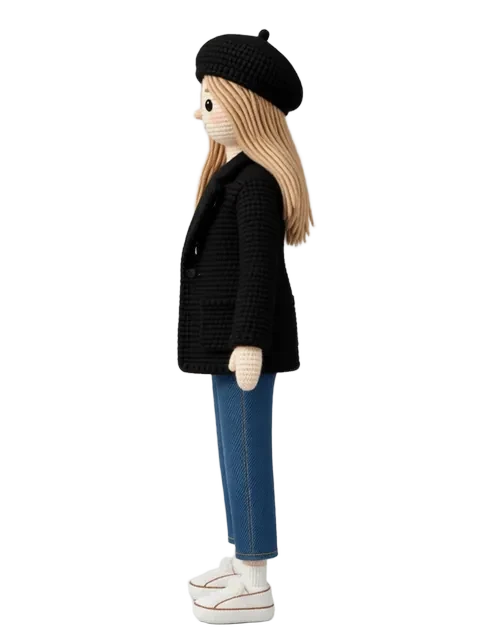
Blender character sculpting depends on orthographic reference. The front and profile view must align precisely — a millimeter of drift in the reference becomes a centimeter of drift in the sculpt. EZ Character produces front, profile, and three-quarter views of the same character in a single generation pass. Import those views as background image planes in Blender, align them in orthographic view, and sculpt to a reference that is consistent by construction.
Step-by-step workflow
- 1
Generate the multi-angle reference
Upload your character concept to EZ Character. Generate the 8-angle turntable — front, profile, ¾ front, ¾ back, and back views at matched resolution.
- 2
Export reference views
Download the front and profile views at full resolution. These are your Blender orthographic background planes.
- 3
Set up Blender background images
In Blender, switch to front orthographic view (Numpad 1). In the 3D Viewport, press N, go to View > Background Images, and load your front reference. Repeat for the right view (Numpad 3) with the profile reference.
- 4
Align and scale references
Adjust the background image scale so both views match in size. Align key landmarks — eyes, shoulders, hips — at the same Y-height in both views.
- 5
Sculpt to orthographic reference
Begin base-mesh construction. Switch between front and side views to match proportions. Use the ¾ view reference periodically to validate the sculpt from intermediate angles.
- 6
Validate and refine
Rotate the viewport to compare against the ¾ front and ¾ back EZ Character references. Confirm that facial features, proportions, and silhouette match from every angle before detailing.
Pro tips
- Generate references at the full resolution on EZ Character (~1MP on every tier, upscalable to 4K) — more pixels = more sculpting detail
- Use Blender's "Image to Plane" add-on for a different workflow: the reference renders as a textured plane in the viewport
- Lock the reference opacity at 50–70% so the sculpt is visible on top of the reference
- Match the character's T-pose or A-pose in EZ Character for clean limb separation during retopology
Frequently asked questions
What resolution should I generate in EZ Character for Blender reference?
Can I use EZ Character output as a texture directly in Blender?
Does this workflow work for both realistic and stylised characters?
Is the EZ Character output good enough for base-mesh retopology?
Start your Blender character pipeline
Generate the multi-angle character reference in EZ Character. Import into Blender. Ship faster.
Try EZ Character freeFree tier: 40 credits every month. No credit card required.