
Create Character Art for Mobile Game Icons
A mobile game icon is the smallest billboard in advertising. At 64x64 pixels on a home screen, your character has roughly the visual real estate of a pea. If the face does not read at that size, nobody taps. The App Store and Google Play are graveyards of beautifully detailed character icons that turn into unrecognizable smudges at thumbnail scale. Answer: Generate a character front-view at 1024x1024px, crop tight to face and shoulders, then test aggressively at 64x64px to verify bold features and high contrast survive the shrink. Apply the iOS squircle mask for App Store and the Android adaptive icon template for Google Play, then export all 20-plus required icon sizes from 16x16px up to 1024x1024px. The icon that wins downloads is not the prettiest one — it is the one you can still recognize when squinting.
- 01
Generate a Character Front-View Reference at Maximum Resolution
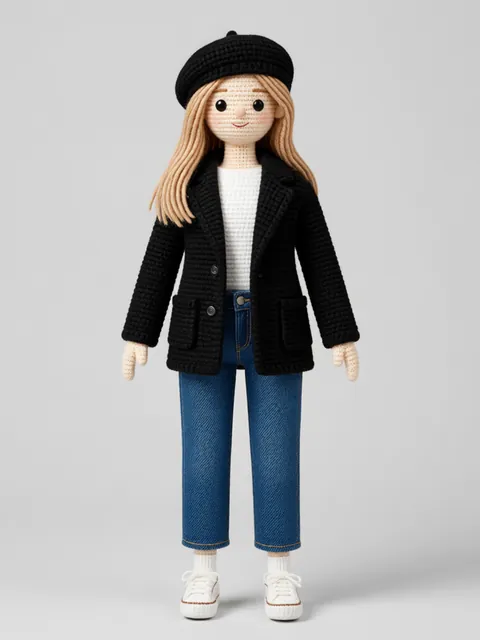
Start with a clean front-view character shot at 1024x1024px. The front view works best for icons because facial symmetry helps recognition at small sizes. Use the character reference sheet generator to produce a high-quality front angle with strong facial features, clear silhouette, and minimal background detail that would clutter the thumbnail.
- 02
Crop Tight to Face and Shoulders for Icon Composition
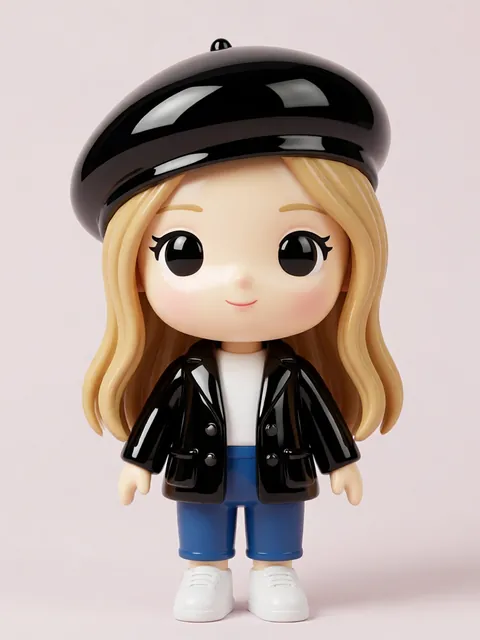
Crop the image to a head-and-shoulders composition that fills the frame. The face should occupy roughly 60% of the icon area with shoulders forming the bottom anchor. Remove any floating hair strands, background elements, or props that break up the silhouette. At icon size, every pixel of the face counts — leave nothing in the frame that does not contribute to instant recognition.
- 03
Test Readability at 64x64px with Bold Features and High Contrast
Scale the composition down to 64x64px and evaluate it critically. The eyes, mouth, and overall head shape should remain distinct. If features blur together, boost contrast on facial landmarks, thicken eyebrow lines, and simplify hair shapes. Bold, graphic features survive the shrink far better than detailed rendering. Squint at it — if you cannot identify the character, a browsing player will not either.
- 04
Apply Platform-Specific Masking for iOS and Android
Apply the iOS squircle mask to your icon — the corners will be clipped by a continuous curve. Test that no critical facial features get cut off at the rounded edges. For Android, use the adaptive icon template which applies a circular safe zone with a rounded-square outer shape. The inner 66% of the canvas is the guaranteed visible area on all Android launchers.
- 05
Export All Required Icon Sizes from 16x16px to 1024x1024px
Generate the full icon set: iOS requires 20-plus sizes ranging from 16x16px (notifications) through 1024x1024px (App Store). Android needs adaptive icon layers at 108dp, 162dp, 216dp, 324dp, and 432dp plus legacy icons at 48x48px, 72x72px, 96x96px, 144x144px, and 192x192px. Use an automated export tool or batch script to avoid manual resizing errors across this many variants.
- Use a front-facing character view for icons — three-quarter angles lose facial symmetry and recognition at small sizes
- Remove the background entirely or use a single bold flat color — busy backgrounds destroy icon readability
- Test the icon at 64x64px on an actual phone home screen screenshot to evaluate real-world readability
- iOS squircle mask clips more aggressively at the corners than you would expect — keep features 20px inside the edge
- Android adaptive icons have a 66% inner safe zone — any character detail outside that circle may be cropped on some launchers
- Use high-contrast color pairings: dark character on light background or vice versa, never midtone on midtone
- Avoid text, numbers, or UI chrome in the icon — Apple may reject icons with text elements
- Export as lossless PNG for all sizes — even slight JPEG compression artifacts are visible at tiny icon dimensions
Frequently asked questions
What size should a mobile game icon be?
Why does my character look like a blurry blob at icon size?
Can I generate a mobile game icon on the free tier?
Should I use different icons for iOS and Android?
Ready to create consistent character views?
Upload a reference image and generate multi-angle views that stay true to your character.
Start generating